> ## Documentation Index
> Fetch the complete documentation index at: https://helpdesk.quso.ai/llms.txt
> Use this file to discover all available pages before exploring further.
# Add B-Roll Overlays to Video
> Add B-roll to a video in quso.ai from stock footage, your own uploads, or AI-generated clips, then trim and place it on the timeline.
B-roll overlays can make your videos more engaging by adding supporting visuals, background footage, or extra context. In Quso.ai, you can easily add, customize, and manage B-rolls — whether they’re images, videos, or audio clips.
***
## 🎬 How to Add B-Rolls to Your Video
### **Step 1: Open Your Project**
* From your **All Projects** page, select the video where you want to add a B-roll.
***
### **Step 2: Go to the Editor**
* On the **Review Clip** screen, choose the clip you want to edit.
* Click **Edit** to enter the video editor.
***
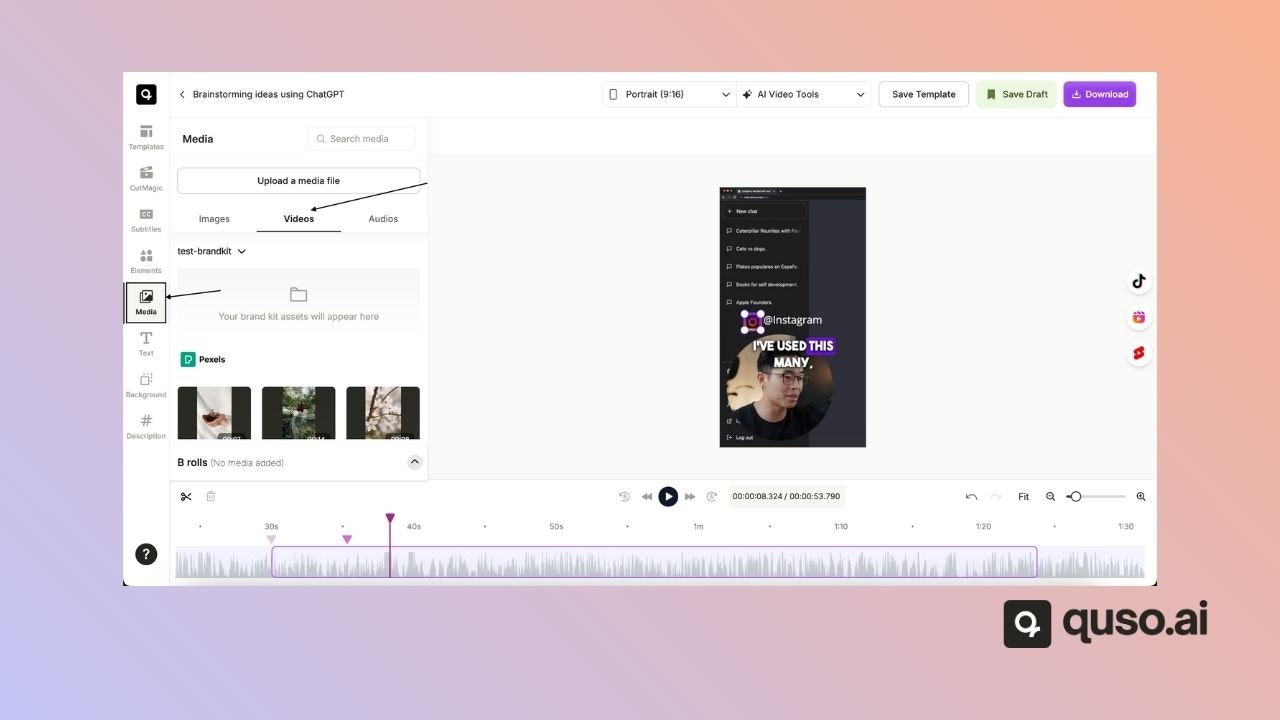
### **Step 3: Access the Media Tab**
* In the editor, find the **Media** tab on the left-hand toolbar.
* Here, you can choose to add **Images**, **Videos**, or **Audio**.
***
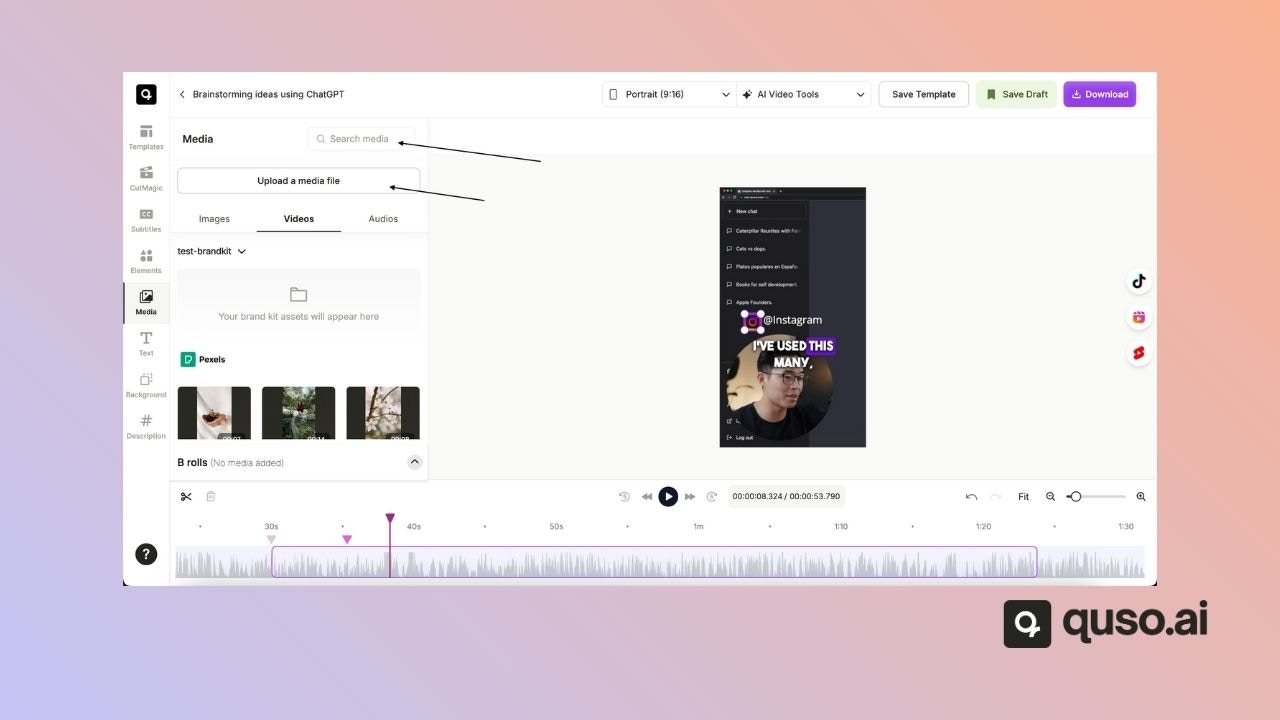
### **Step 4: Select or Upload Your B-Roll**
You can:
1. **Use pre-uploaded media** from your library.
2. **Upload new files** from your computer.
3. **Search stock footage** by typing a keyword (e.g., “snow”) and pressing Enter.
***
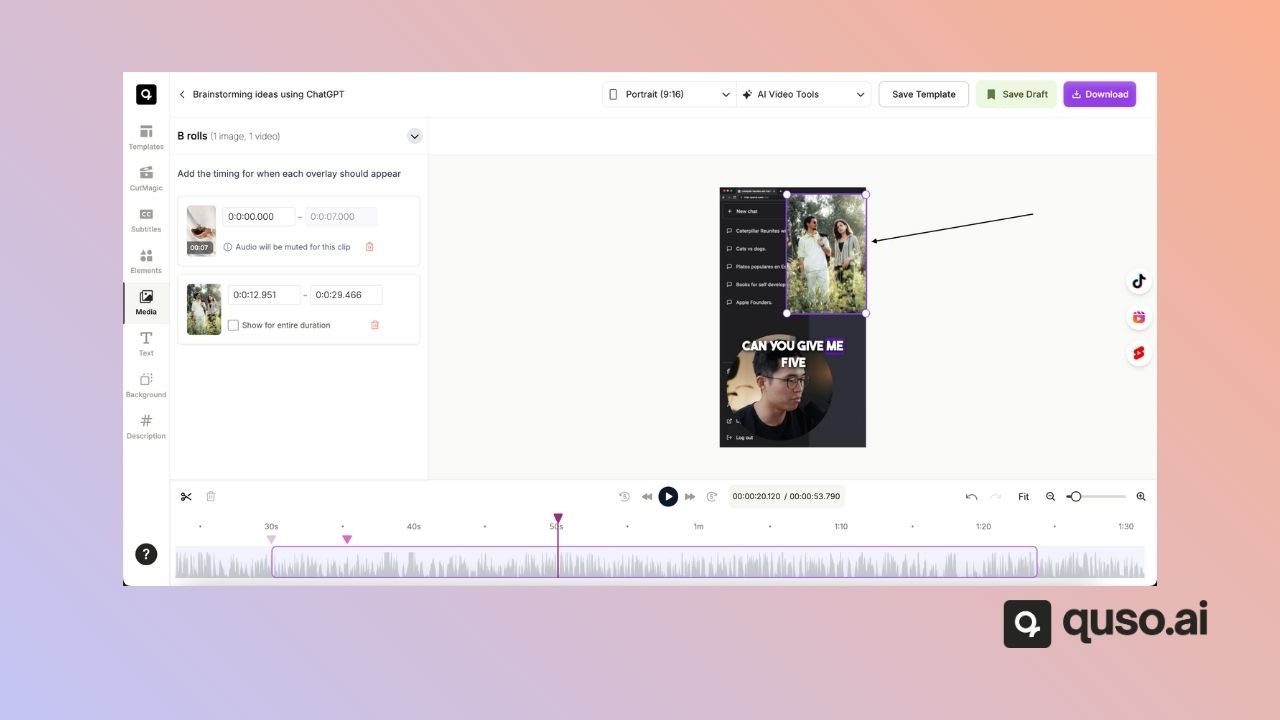
### **Step 5: Add the B-Roll to Your Clip**
* Click on your chosen file and it will be automatically added to the clip.
* For **video or image B-rolls**, you can adjust their position in the timeline to control when they appear.
***
## ⚙️ How to Manage Your B-Rolls
### **Step 6: View and Adjust Timings**
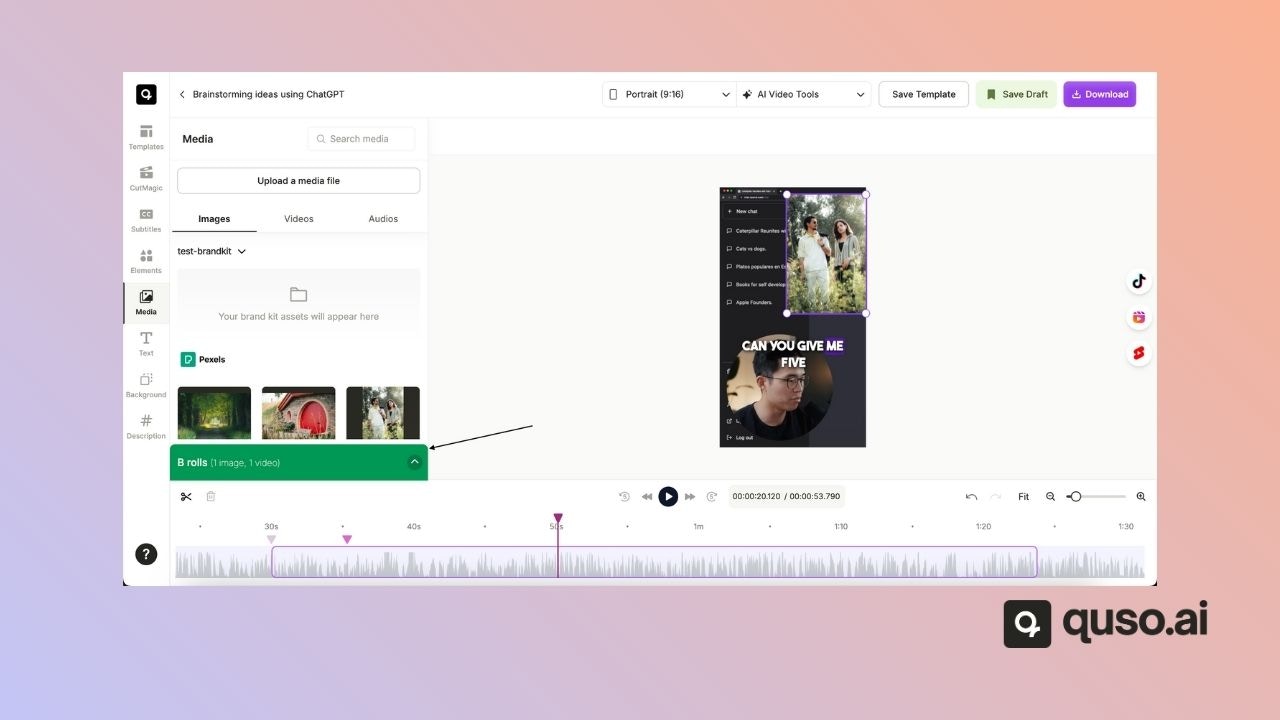
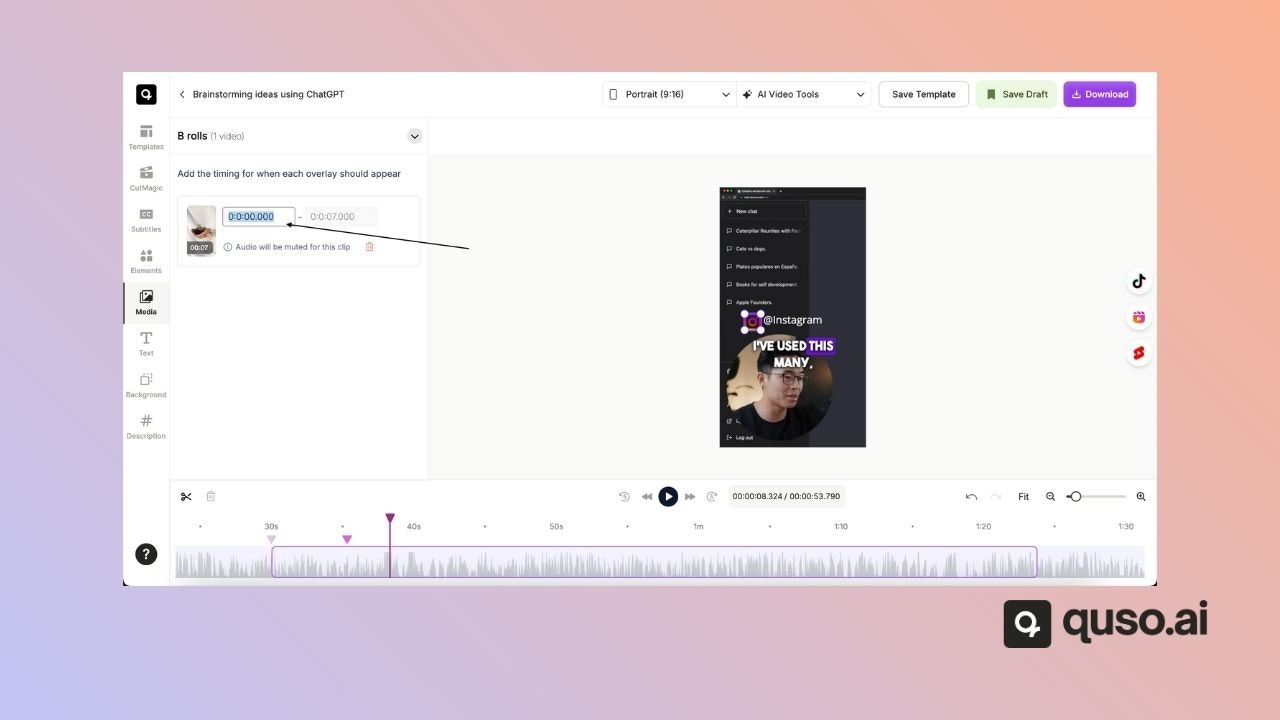
* B-rolls appear as a submenu.
* Click the menu to adjust its start and end times.
Please note that the end timing can only be edited for images and audio, not for video brolls.
***
### **Step 7: Adjust Audio B-Rolls**
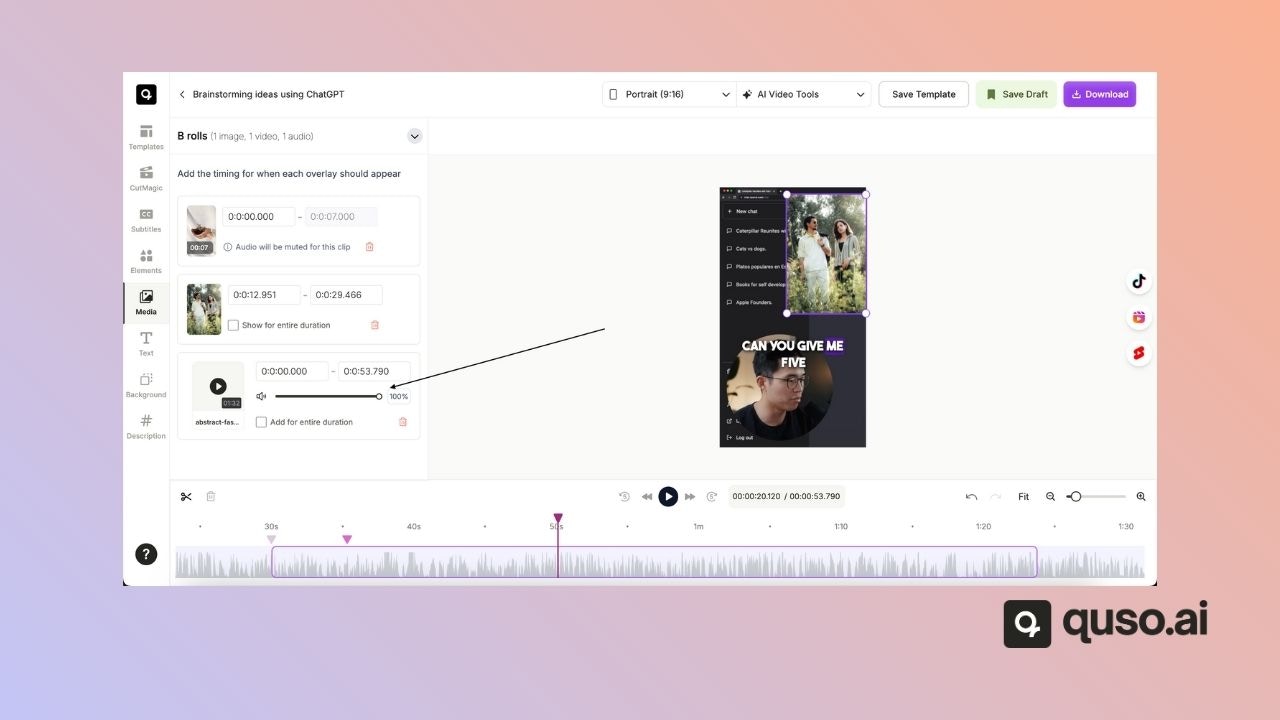
* Change the volume, mute them, or set the audio to play during selected sections.
***
### **Step 8: Delete a B-Roll**
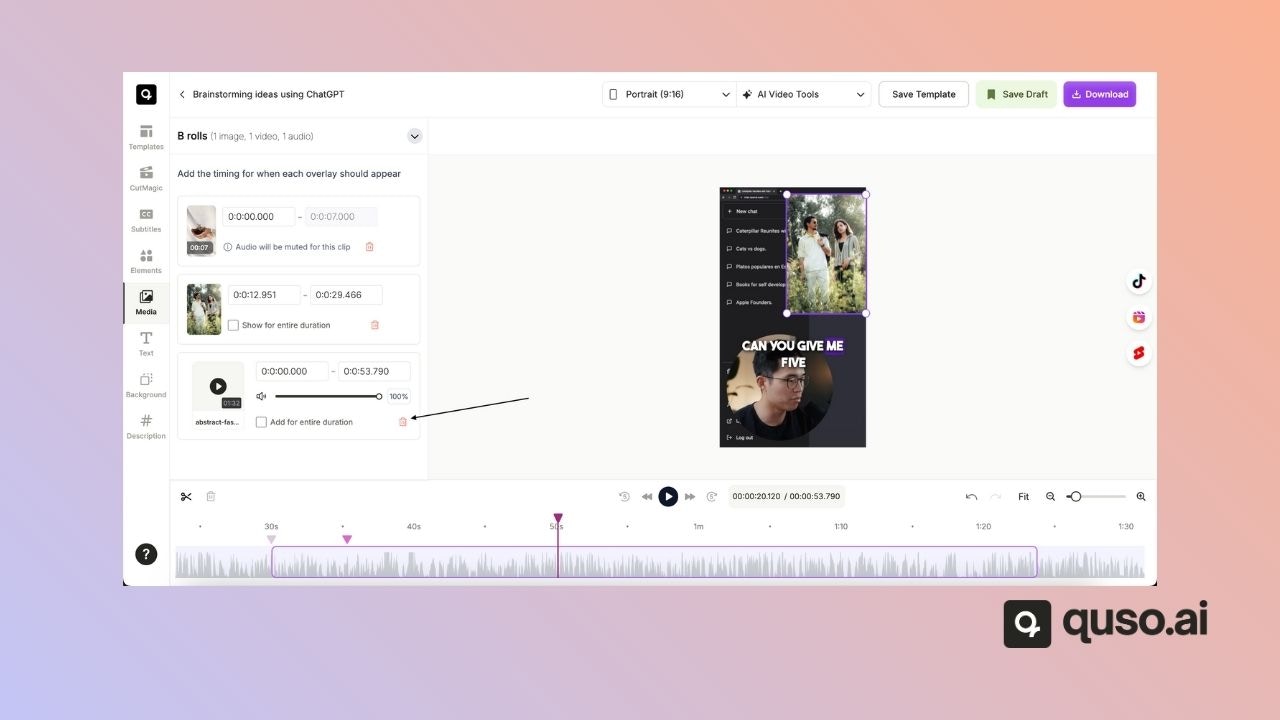
* Click the **bin icon** to remove a B-roll instantly.
***
## 💡 Pro Tips
* Use **short B-roll clips** to keep your edits snappy.
* Combine B-rolls with **captions and effects** for more impact.
* Keep your B-rolls relevant to the main content to maintain viewer focus.
***
## ✅ You’re All Set!
With these steps, you can now add and customize B-roll overlays to make your videos more dynamic and visually appealing.
Need more help with editing? Contact our support team at [help@quso.ai](mailto:help@quso.ai) anytime!
This documentation is built and hosted on [Mintlify](https://mintlify.com), a developer documentation platform.
 ***
### **Step 3: Access the Media Tab**
* In the editor, find the **Media** tab on the left-hand toolbar.
* Here, you can choose to add **Images**, **Videos**, or **Audio**.
***
### **Step 3: Access the Media Tab**
* In the editor, find the **Media** tab on the left-hand toolbar.
* Here, you can choose to add **Images**, **Videos**, or **Audio**.
 ***
### **Step 4: Select or Upload Your B-Roll**
You can:
1. **Use pre-uploaded media** from your library.
2. **Upload new files** from your computer.
3. **Search stock footage** by typing a keyword (e.g., “snow”) and pressing Enter.
***
### **Step 4: Select or Upload Your B-Roll**
You can:
1. **Use pre-uploaded media** from your library.
2. **Upload new files** from your computer.
3. **Search stock footage** by typing a keyword (e.g., “snow”) and pressing Enter.
 ***
### **Step 5: Add the B-Roll to Your Clip**
* Click on your chosen file and it will be automatically added to the clip.
* For **video or image B-rolls**, you can adjust their position in the timeline to control when they appear.
***
### **Step 5: Add the B-Roll to Your Clip**
* Click on your chosen file and it will be automatically added to the clip.
* For **video or image B-rolls**, you can adjust their position in the timeline to control when they appear.
 ***
## ⚙️ How to Manage Your B-Rolls
### **Step 6: View and Adjust Timings**
* B-rolls appear as a submenu.
***
## ⚙️ How to Manage Your B-Rolls
### **Step 6: View and Adjust Timings**
* B-rolls appear as a submenu.
 * Click the menu to adjust its start and end times.
 ***
### **Step 7: Adjust Audio B-Rolls**
* Change the volume, mute them, or set the audio to play during selected sections.
***
### **Step 7: Adjust Audio B-Rolls**
* Change the volume, mute them, or set the audio to play during selected sections.
 ***
### **Step 8: Delete a B-Roll**
* Click the **bin icon** to remove a B-roll instantly.
***
### **Step 8: Delete a B-Roll**
* Click the **bin icon** to remove a B-roll instantly.
 ***
## 💡 Pro Tips
* Use **short B-roll clips** to keep your edits snappy.
* Combine B-rolls with **captions and effects** for more impact.
* Keep your B-rolls relevant to the main content to maintain viewer focus.
***
## ✅ You’re All Set!
With these steps, you can now add and customize B-roll overlays to make your videos more dynamic and visually appealing.
Need more help with editing? Contact our support team at [help@quso.ai](mailto:help@quso.ai) anytime!
This documentation is built and hosted on [Mintlify](https://mintlify.com), a developer documentation platform.
***
## 💡 Pro Tips
* Use **short B-roll clips** to keep your edits snappy.
* Combine B-rolls with **captions and effects** for more impact.
* Keep your B-rolls relevant to the main content to maintain viewer focus.
***
## ✅ You’re All Set!
With these steps, you can now add and customize B-roll overlays to make your videos more dynamic and visually appealing.
Need more help with editing? Contact our support team at [help@quso.ai](mailto:help@quso.ai) anytime!
This documentation is built and hosted on [Mintlify](https://mintlify.com), a developer documentation platform.