> ## Documentation Index
> Fetch the complete documentation index at: https://helpdesk.quso.ai/llms.txt
> Use this file to discover all available pages before exploring further.
# How Do I Add Outros to My Videos?
An **outro** is a great way to wrap up your video, promote your brand, or encourage viewers to take action (such as following you on social media or visiting your website). With Quso.ai, adding an outro is quick and simple.
***
## 🎬 How to Add an Outro
### **Step 1: Open the Editor**
* From your [Quso.ai](http://Quso.ai) dashboard, open the project you’d like to edit.
* Click **Edit** to access the video editor.
***
### **Step 2: Navigate to the Outro Section**
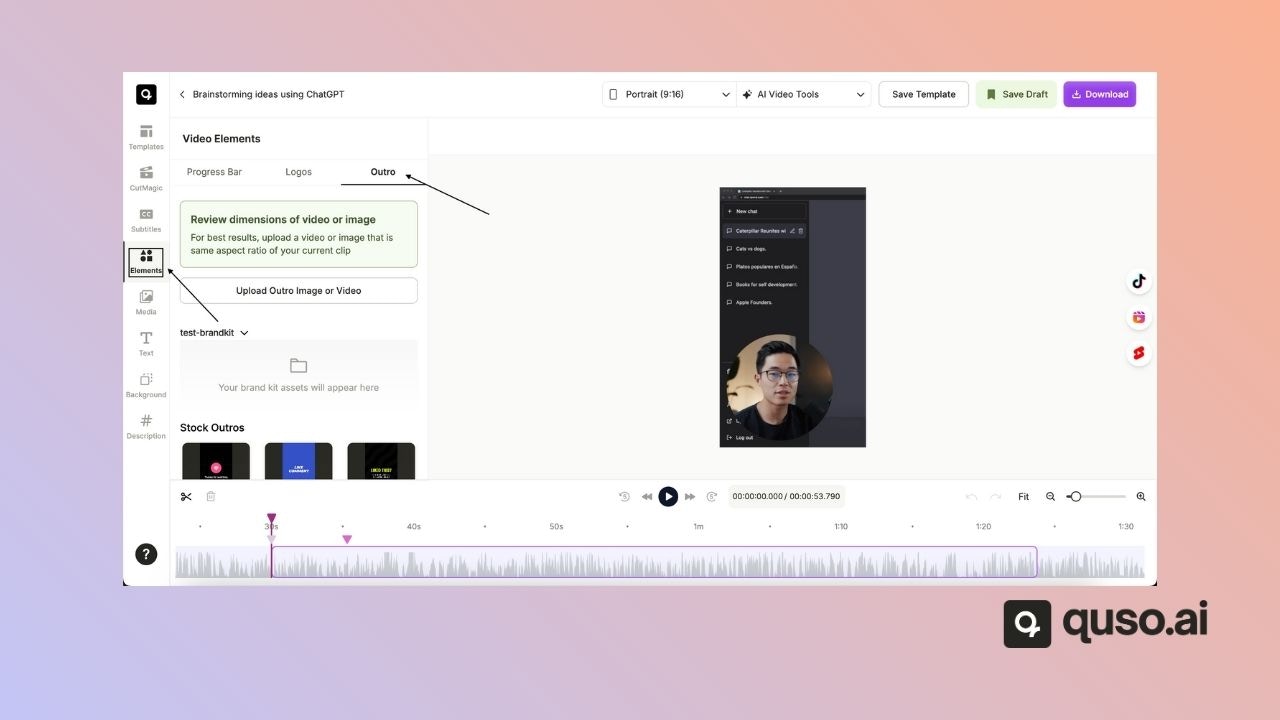
* In the editor, look for the **Elements** section in the left-hand panel. Then go to the outro menu.
***
### **Step 3: Add Your Outro Media**
You have two options:
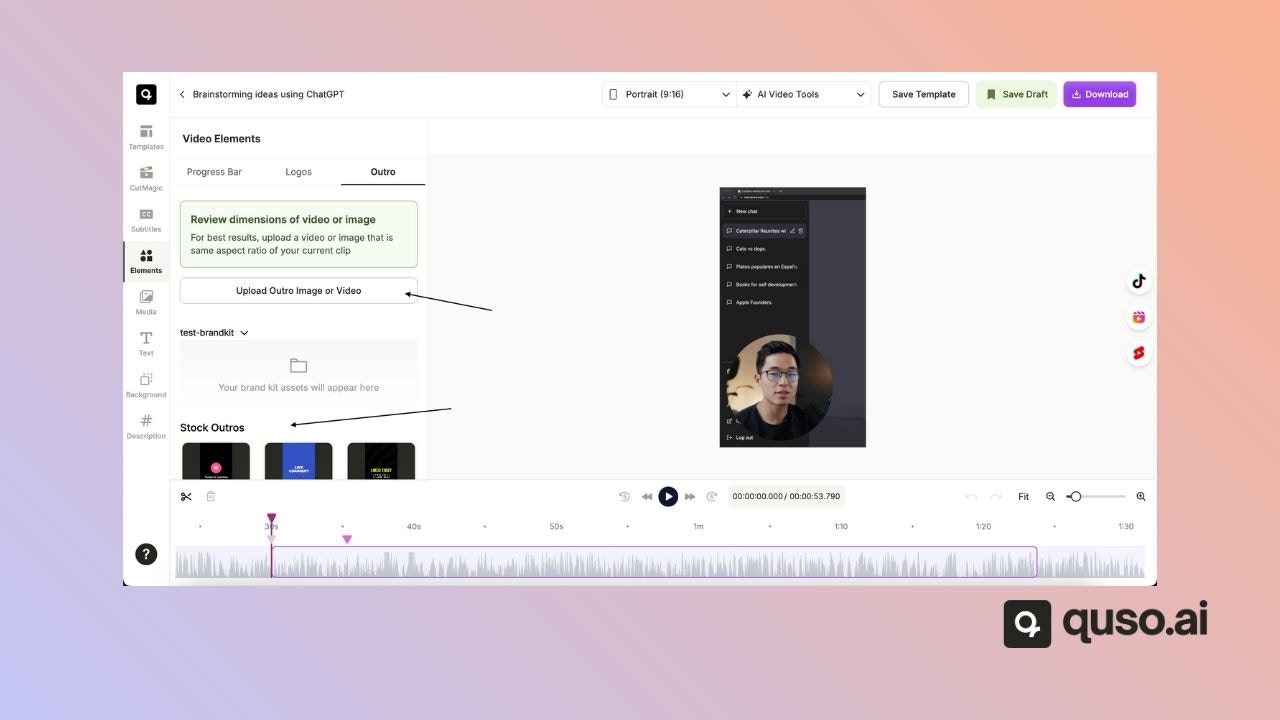
1. **Upload a new outro** — Select an image or video file from your computer.
2. **Use an existing outro** — Choose one from your **Media Library** or **Brand Kit**.
***
### **Step 4: Apply and Preview**
* Once added, the outro will automatically appear at the end of your video.
* Use the preview option to see how it looks.
***
## ✅ You’re All Set!
Your video now ends with a professional outro that leaves a lasting impression on viewers.
Need help creating an outro that matches your brand? Contact our support team — we’d be happy to help!
 ***
### **Step 2: Navigate to the Outro Section**
* In the editor, look for the **Elements** section in the left-hand panel. Then go to the outro menu.
***
### **Step 2: Navigate to the Outro Section**
* In the editor, look for the **Elements** section in the left-hand panel. Then go to the outro menu.
 ***
### **Step 3: Add Your Outro Media**
You have two options:
1. **Upload a new outro** — Select an image or video file from your computer.
2. **Use an existing outro** — Choose one from your **Media Library** or **Brand Kit**.
***
### **Step 3: Add Your Outro Media**
You have two options:
1. **Upload a new outro** — Select an image or video file from your computer.
2. **Use an existing outro** — Choose one from your **Media Library** or **Brand Kit**.
 ***
### **Step 4: Apply and Preview**
* Once added, the outro will automatically appear at the end of your video.
* Use the preview option to see how it looks.
***
## ✅ You’re All Set!
Your video now ends with a professional outro that leaves a lasting impression on viewers.
Need help creating an outro that matches your brand? Contact our support team — we’d be happy to help!
***
### **Step 4: Apply and Preview**
* Once added, the outro will automatically appear at the end of your video.
* Use the preview option to see how it looks.
***
## ✅ You’re All Set!
Your video now ends with a professional outro that leaves a lasting impression on viewers.
Need help creating an outro that matches your brand? Contact our support team — we’d be happy to help!