> ## Documentation Index
> Fetch the complete documentation index at: https://helpdesk.quso.ai/llms.txt
> Use this file to discover all available pages before exploring further.
# Add Sound to Captions
Want to make your captions more dynamic and engaging? With Quso.ai, you can **attach sound effects directly to your subtitles**, helping to emphasize key words or enhance the viewer's experience with audio cues.
This guide walks you through how to add and customize sound effects for your captions in just a few clicks.
***
## 🔊 How to Add Sound to Captions
### **Step 1: Open the Editor**
* From your [Quso.ai](http://Quso.ai) dashboard, open the project you want to edit.
* Click **Edit** to enter the video editor.
***
### **Step 2: Go to the Subtitles Tab**
* On the left-hand panel, click on **Subtitles** to view your caption lines.
***
### **Step 3: Select a Caption and Add a Sound Effect**
* Next to each subtitle, you'll see a **sound effects icon**.
* Click it to open the **sound effect library**.
***
### **Step 4: Choose and Adjust**
* **Choose your desired sound effect** from the list.
* Use the volume slider to **adjust the intensity** of the sound.
***
### **Step 5: Confirm and Repeat**
* Confirm your selection to attach the sound to that caption.
* Repeat the process for any other subtitles where you’d like to add sound effects.
***
## ✅ You're All Set!
Adding sound effects to captions is a simple but powerful way to bring energy and emotion to your content. It helps maintain viewer attention and gives your videos a more polished, professional feel.
Need help selecting the right effect? Reach out to our support team — we’re here to help!
 ***
### **Step 2: Go to the Subtitles Tab**
* On the left-hand panel, click on **Subtitles** to view your caption lines.
***
### **Step 2: Go to the Subtitles Tab**
* On the left-hand panel, click on **Subtitles** to view your caption lines.
 ***
### **Step 3: Select a Caption and Add a Sound Effect**
* Next to each subtitle, you'll see a **sound effects icon**.
* Click it to open the **sound effect library**.
***
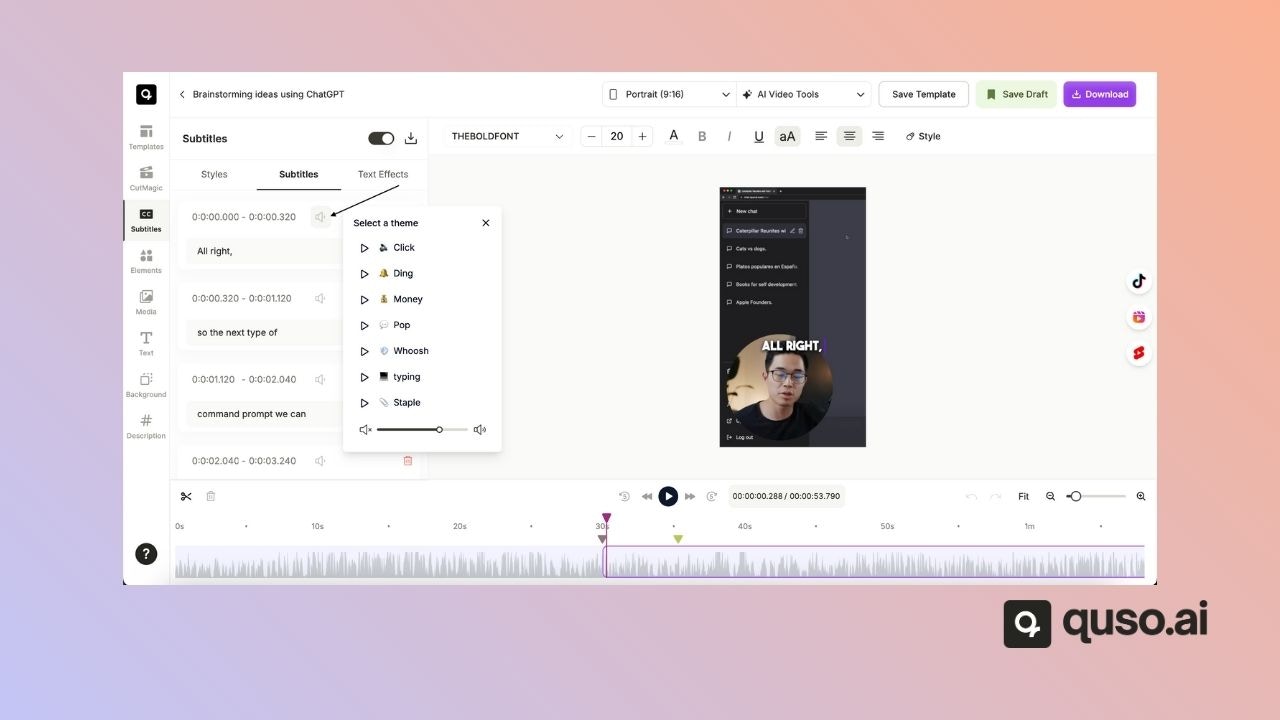
### **Step 3: Select a Caption and Add a Sound Effect**
* Next to each subtitle, you'll see a **sound effects icon**.
* Click it to open the **sound effect library**.
 ***
### **Step 4: Choose and Adjust**
* **Choose your desired sound effect** from the list.
* Use the volume slider to **adjust the intensity** of the sound.
***
### **Step 5: Confirm and Repeat**
* Confirm your selection to attach the sound to that caption.
* Repeat the process for any other subtitles where you’d like to add sound effects.
***
## ✅ You're All Set!
Adding sound effects to captions is a simple but powerful way to bring energy and emotion to your content. It helps maintain viewer attention and gives your videos a more polished, professional feel.
Need help selecting the right effect? Reach out to our support team — we’re here to help!
***
### **Step 4: Choose and Adjust**
* **Choose your desired sound effect** from the list.
* Use the volume slider to **adjust the intensity** of the sound.
***
### **Step 5: Confirm and Repeat**
* Confirm your selection to attach the sound to that caption.
* Repeat the process for any other subtitles where you’d like to add sound effects.
***
## ✅ You're All Set!
Adding sound effects to captions is a simple but powerful way to bring energy and emotion to your content. It helps maintain viewer attention and gives your videos a more polished, professional feel.
Need help selecting the right effect? Reach out to our support team — we’re here to help!