> ## Documentation Index
> Fetch the complete documentation index at: https://helpdesk.quso.ai/llms.txt
> Use this file to discover all available pages before exploring further.
# AI Headline
> Open every AI clip with a short AI-written headline for its first 5 seconds. Turn it on per project, then reword or restyle it per clip.
**AI Headline** opens every clip in your project with a short, attention-grabbing headline. quso.ai writes the headline from each clip's hook and shows it on the video for the **first 5 seconds**, so viewers know right away why they should keep watching.
AI Headline is available for **AI Clips** projects.
***
## What the headline looks like
* Bold black text in a white rounded box, centered near the top of the video.
* It sits above the speaker and stays clear of your captions.
* It fits every aspect ratio: on portrait and square clips it spans most of the width; on landscape clips it wraps to about 2 lines. Longer headlines shrink to fit the box.
* On clips shorter than 5 seconds, the headline ends with the clip.
* If your clip uses a template that already has its own title slot, the template keeps its own style and timing and simply shows the AI headline text. A clip never shows two titles.
***
## Turn on AI Headline when you import a video
### Step 1: Start an AI Clips project
* Upload or import your video and choose **AI Clips**.
### Step 2: Switch on the headline
* Under **AI Video Tools**, turn on **Open every clip with an AI headline**.
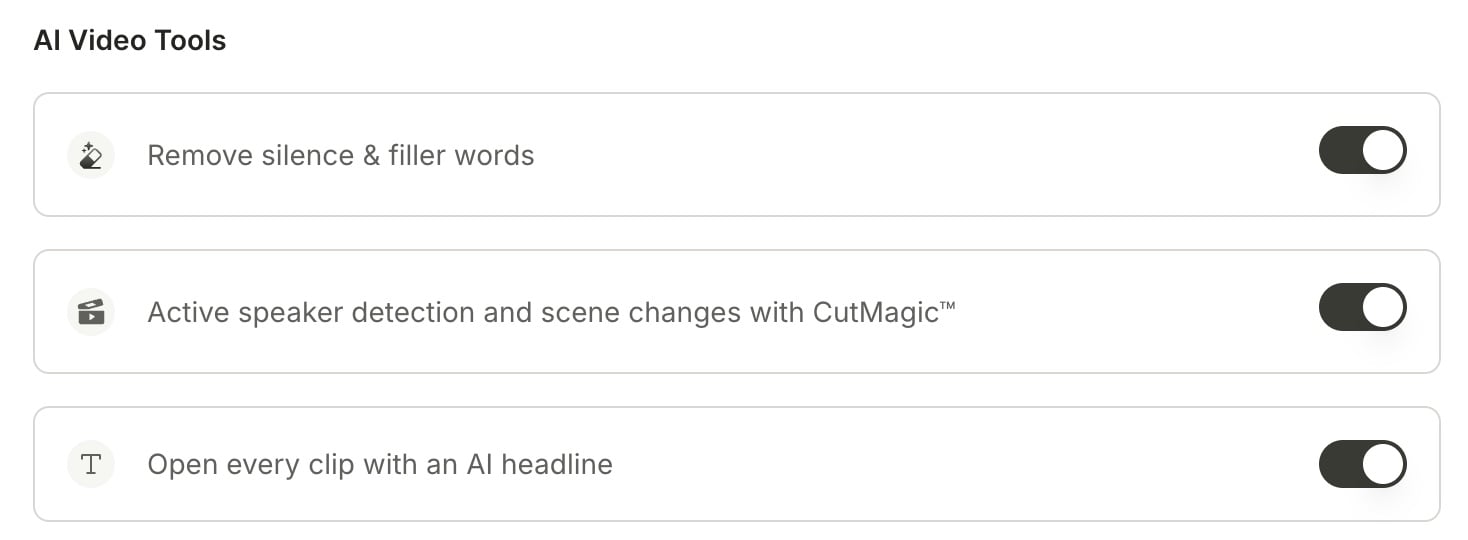 quso.ai remembers your last choice on this switch and uses it for your next import, on any device.
The same switch is available when you import on mobile.
***
## Turn AI Headline on or off after your clips are ready
The headline is **one switch for the whole project**. Turning it on or off applies to every clip in the project.
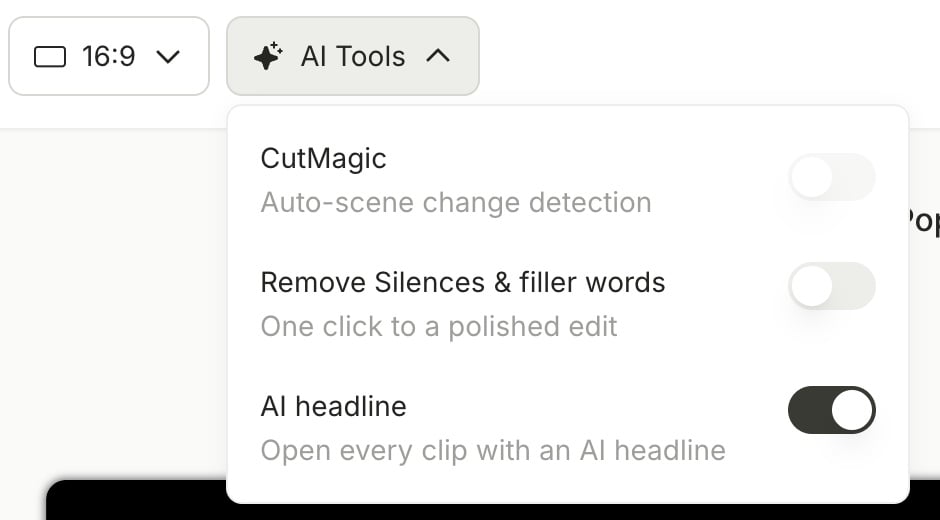
1. On the page with all your clips, click **AI Tools** at the top.
2. Find **AI headline** and turn the switch on or off.
quso.ai remembers your last choice on this switch and uses it for your next import, on any device.
The same switch is available when you import on mobile.
***
## Turn AI Headline on or off after your clips are ready
The headline is **one switch for the whole project**. Turning it on or off applies to every clip in the project.
1. On the page with all your clips, click **AI Tools** at the top.
2. Find **AI headline** and turn the switch on or off.
 ***
## Edit the headline on a single clip
The headline is a regular text layer, so you can change it like any other text on your video.
### Step 1: Open the clip in the editor
* Choose the clip and click **Edit**.
### Step 2: Open the text tool
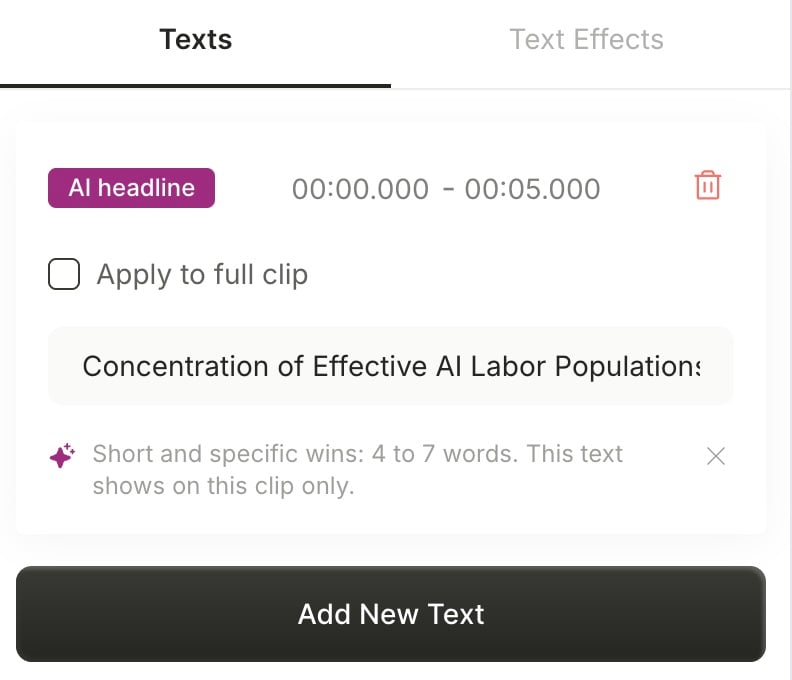
* In the editor's left-hand navigation bar, click the **T** icon. The headline is marked with an **AI headline** badge.
***
## Edit the headline on a single clip
The headline is a regular text layer, so you can change it like any other text on your video.
### Step 1: Open the clip in the editor
* Choose the clip and click **Edit**.
### Step 2: Open the text tool
* In the editor's left-hand navigation bar, click the **T** icon. The headline is marked with an **AI headline** badge.
 ### Step 3: Reword, retime, or restyle it
* **Reword:** edit the text. Your new wording applies to **this clip only**.
* **Retime:** change the start and end time if you want it to show for longer or later.
* **Restyle:** change the font, color, and effects with the normal text tools. See [Change text style and effects](/help/editor/change-text-style-and-effects).
Short and specific wins: aim for **4 to 7 words**.
Your reworded headline stays in place if you later switch the clip's template or aspect ratio.
### Remove the headline from a clip
* In the text tool, delete the layer marked **AI headline**.
***
## FAQ
AI Headline may be off for this project. Click **AI Tools** on the page with all your clips and turn on **AI headline**. AI Headline works on AI Clips projects only.
No. Each clip has its own headline text. Only the on/off switch applies to the whole project.
No. Each project has its own switch. On the import screen, quso.ai starts from your last choice.
***
### Need Help?
If you run into any issues or have questions, our support team at [help@quso.ai](mailto:help@quso.ai) is just a message away.
This documentation is built and hosted on [Mintlify](https://mintlify.com), a developer documentation platform.
### Step 3: Reword, retime, or restyle it
* **Reword:** edit the text. Your new wording applies to **this clip only**.
* **Retime:** change the start and end time if you want it to show for longer or later.
* **Restyle:** change the font, color, and effects with the normal text tools. See [Change text style and effects](/help/editor/change-text-style-and-effects).
Short and specific wins: aim for **4 to 7 words**.
Your reworded headline stays in place if you later switch the clip's template or aspect ratio.
### Remove the headline from a clip
* In the text tool, delete the layer marked **AI headline**.
***
## FAQ
AI Headline may be off for this project. Click **AI Tools** on the page with all your clips and turn on **AI headline**. AI Headline works on AI Clips projects only.
No. Each clip has its own headline text. Only the on/off switch applies to the whole project.
No. Each project has its own switch. On the import screen, quso.ai starts from your last choice.
***
### Need Help?
If you run into any issues or have questions, our support team at [help@quso.ai](mailto:help@quso.ai) is just a message away.
This documentation is built and hosted on [Mintlify](https://mintlify.com), a developer documentation platform.