> ## Documentation Index
> Fetch the complete documentation index at: https://helpdesk.quso.ai/llms.txt
> Use this file to discover all available pages before exploring further.
# Change Video Size or Aspect Ratio
> Change video aspect ratio in quso.ai to 9:16, 1:1, 4:5, or 16:9 for TikTok, Reels, Shorts, LinkedIn, or YouTube without re-editing the clip.
This guide explains how to change the aspect ratio of your clips directly in the editor. Adjusting the aspect ratio allows you to optimize your videos for different platforms such as YouTube, Instagram, LinkedIn, or Twitter.
***
### Steps to Change Aspect Ratio
**Step 1:** Open the editor for the clip you want to adjust.
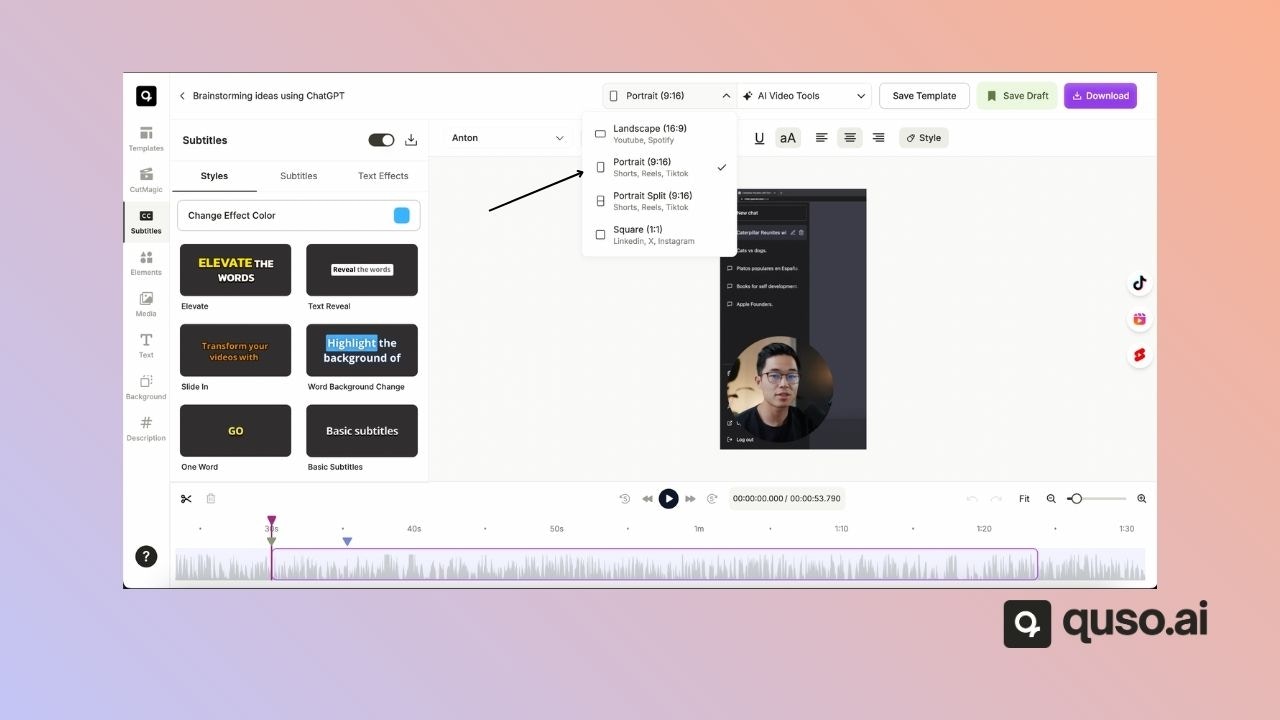
**Step 2:** On the top ribbon, click the aspect ratio button (it will display the current ratio, such as Portrait).
**Step 3:** Choose your desired aspect ratio:
* **Landscape (16:9)** – Best for YouTube and widescreen platforms.
* **Square (1:1)** – Great for LinkedIn, Facebook, and Twitter.
* **Portrait (9:16)** – Ideal for Instagram Stories, TikTok, and Reels.
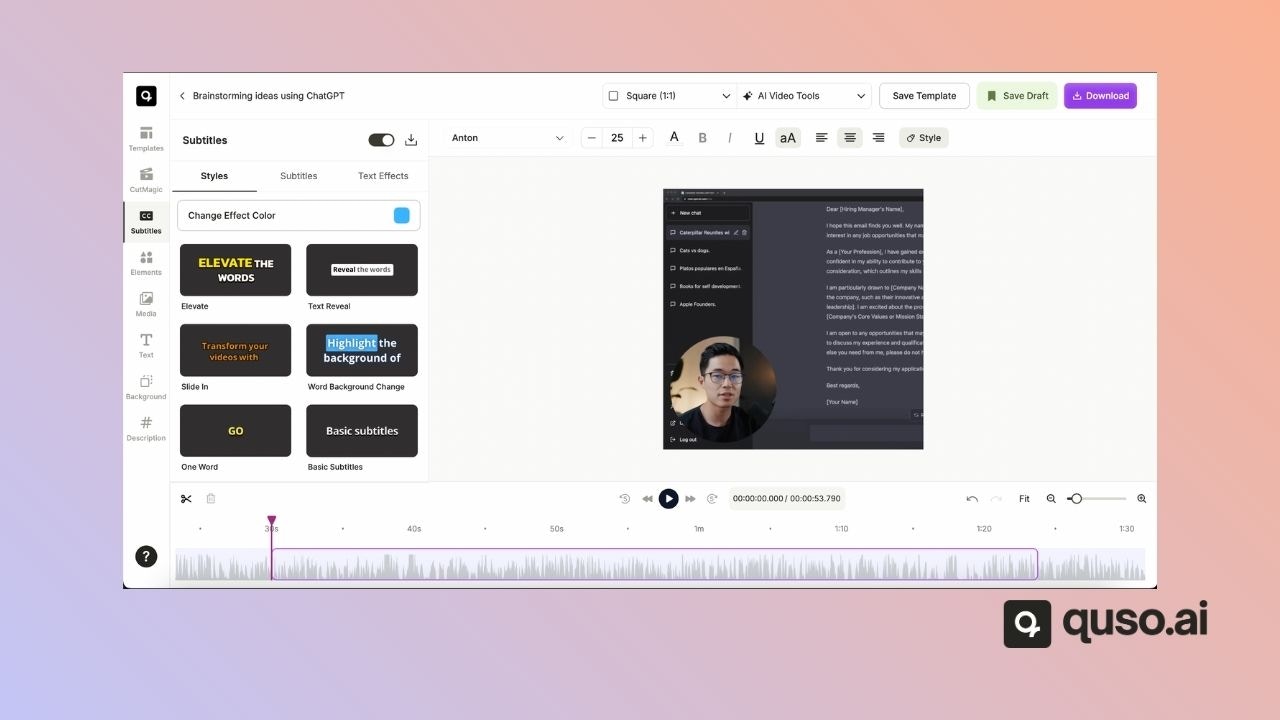
**Step 4:** Your clip will instantly update to the selected aspect ratio. You can switch back anytime as needed.
***
That’s it! With just a few clicks, you can resize your video to match the requirements of any social media platform.
 **Step 2:** On the top ribbon, click the aspect ratio button (it will display the current ratio, such as Portrait).
 **Step 3:** Choose your desired aspect ratio:
* **Landscape (16:9)** – Best for YouTube and widescreen platforms.
* **Square (1:1)** – Great for LinkedIn, Facebook, and Twitter.
* **Portrait (9:16)** – Ideal for Instagram Stories, TikTok, and Reels.
**Step 3:** Choose your desired aspect ratio:
* **Landscape (16:9)** – Best for YouTube and widescreen platforms.
* **Square (1:1)** – Great for LinkedIn, Facebook, and Twitter.
* **Portrait (9:16)** – Ideal for Instagram Stories, TikTok, and Reels.
 **Step 4:** Your clip will instantly update to the selected aspect ratio. You can switch back anytime as needed.
 ***
That’s it! With just a few clicks, you can resize your video to match the requirements of any social media platform.
***
That’s it! With just a few clicks, you can resize your video to match the requirements of any social media platform.