> ## Documentation Index
> Fetch the complete documentation index at: https://helpdesk.quso.ai/llms.txt
> Use this file to discover all available pages before exploring further.
# Create Your Brand Template
Quso.ai allows you to **create and save custom templates**, so you can maintain a consistent brand style across all your videos. Once saved, these templates can be applied with a single click, saving you time and ensuring uniformity.
***
## 🎬 How to Create a Brand Template
### Step 1: Open the Template Tab
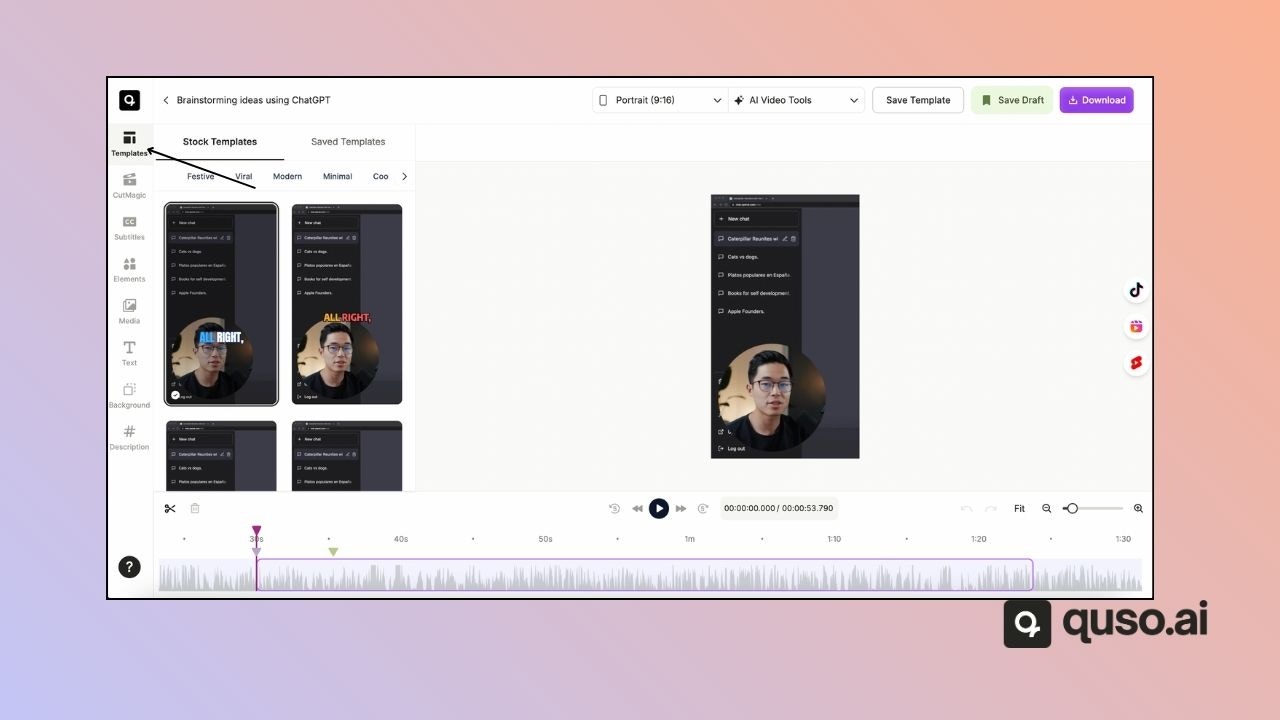
* In the **Editor screen**, look at the left-side navigation bar.
* Click on **Templates** to view available options.
***
### Step 2: Choose a Template to Customize
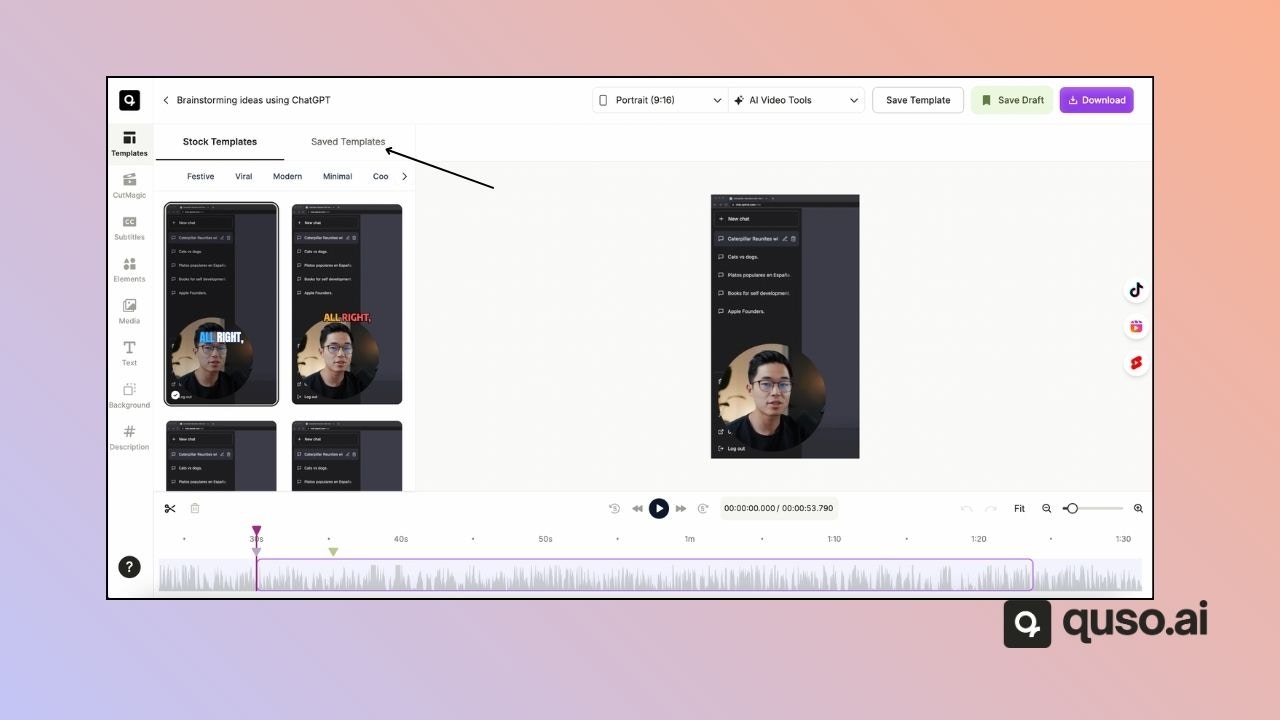
* Browse the **stock templates** provided by [Quso.ai](http://Quso.ai).
* You’ll also see your previously saved templates under **Saved Templates**.
* Select a template to start customizing.
***
### Step 3: Customize the Template
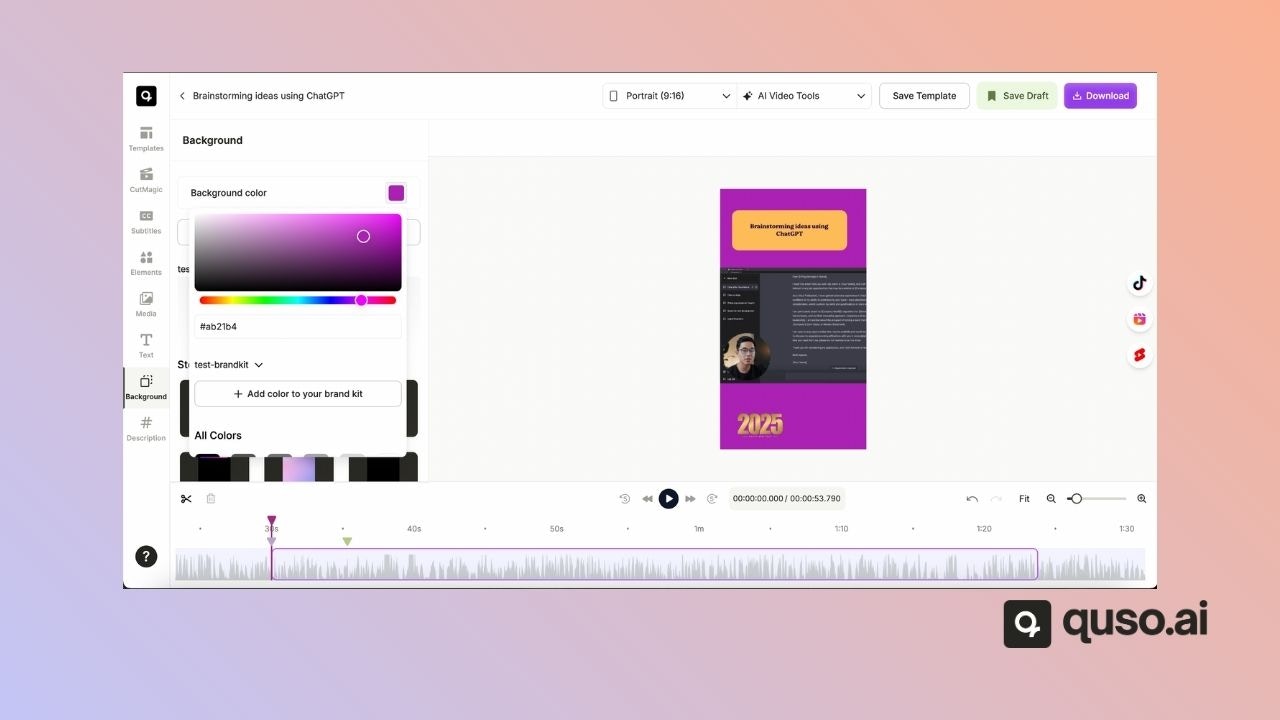
* Modify elements such as background color, text, subtitles, and images.
* For example, you might set the background to your **brand color**.
***
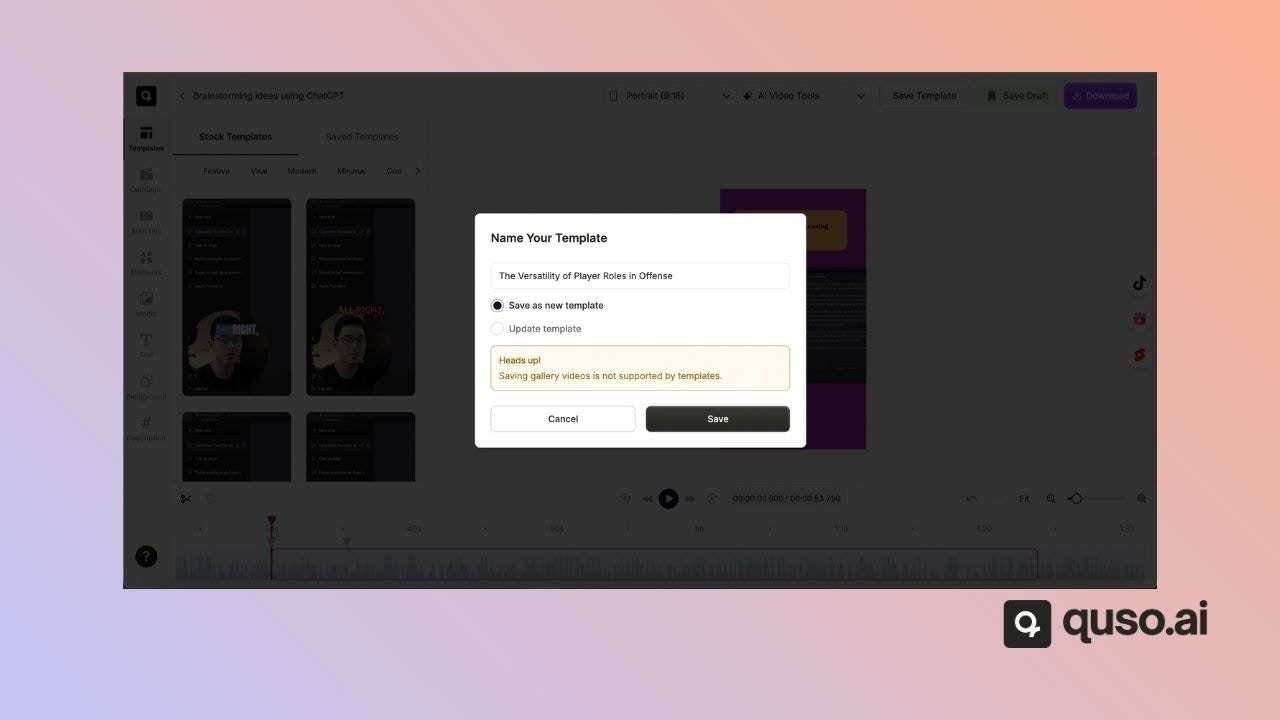
### Step 4: Save Your Custom Template
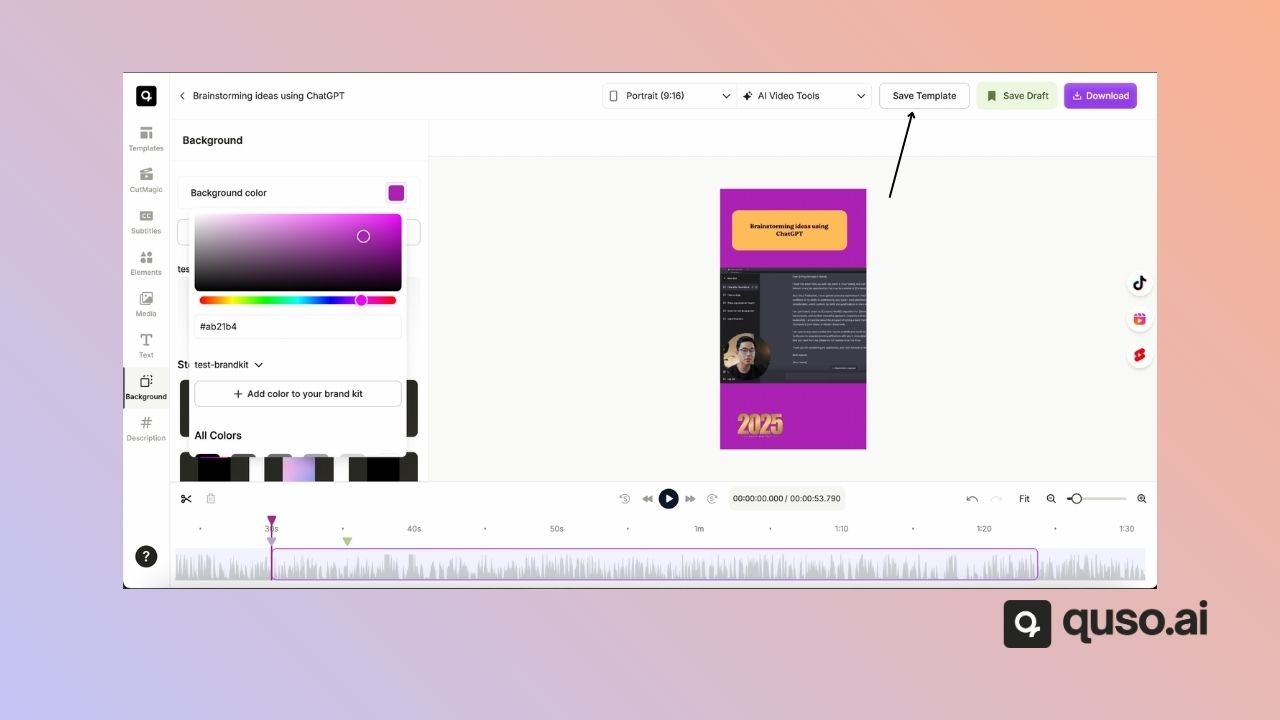
* Click on **Save Template** in the upper ribbon of the screen.
* Enter a name for your template (e.g., *My Pink Template*).
***
### Step 5: Save as New or Update Existing
* You’ll have two options:
* **Save as New Template** – Creates a fresh template.
* **Update Existing Template** – Applies changes to an existing one.
> ⚠️ Note: Saving gallery videos is not currently supported by templates. However, **subtitle styles, text, and images** can be saved.
***
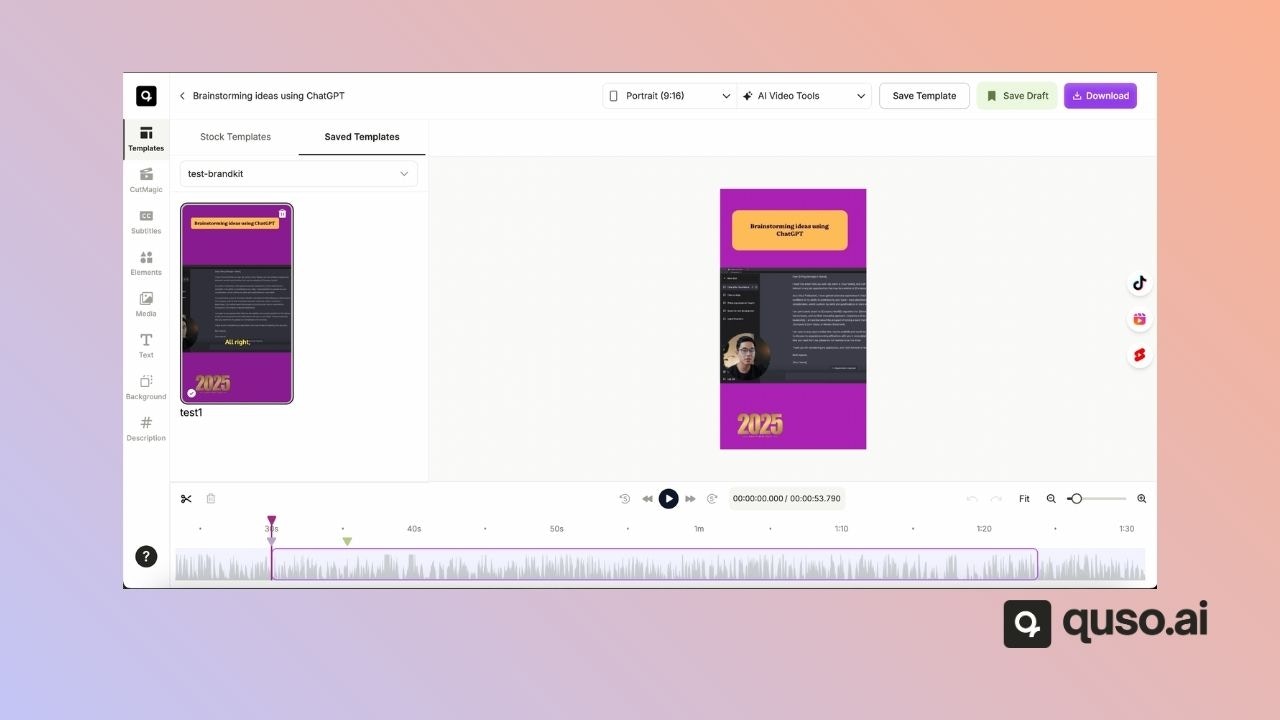
### Step 6: Access Your Saved Templates
* Once saved, your custom template will appear under **My Templates**.
* Scroll down to find and apply it to future projects instantly.
***
## ✅ Why Create a Brand Template?
* Keep your videos **on-brand** with consistent fonts, colors, and styles
* Save time with a **one-click application**
* Streamline collaboration by ensuring your team uses the same design
***
With brand templates, you can build a recognizable style and speed up your video creation workflow.
 ***
### Step 2: Choose a Template to Customize
* Browse the **stock templates** provided by [Quso.ai](http://Quso.ai).
* You’ll also see your previously saved templates under **Saved Templates**.
* Select a template to start customizing.
***
### Step 2: Choose a Template to Customize
* Browse the **stock templates** provided by [Quso.ai](http://Quso.ai).
* You’ll also see your previously saved templates under **Saved Templates**.
* Select a template to start customizing.
 ***
### Step 3: Customize the Template
* Modify elements such as background color, text, subtitles, and images.
* For example, you might set the background to your **brand color**.
***
### Step 3: Customize the Template
* Modify elements such as background color, text, subtitles, and images.
* For example, you might set the background to your **brand color**.
 ***
### Step 4: Save Your Custom Template
* Click on **Save Template** in the upper ribbon of the screen.
* Enter a name for your template (e.g., *My Pink Template*).
***
### Step 4: Save Your Custom Template
* Click on **Save Template** in the upper ribbon of the screen.
* Enter a name for your template (e.g., *My Pink Template*).
 ***
### Step 5: Save as New or Update Existing
* You’ll have two options:
* **Save as New Template** – Creates a fresh template.
* **Update Existing Template** – Applies changes to an existing one.
***
### Step 5: Save as New or Update Existing
* You’ll have two options:
* **Save as New Template** – Creates a fresh template.
* **Update Existing Template** – Applies changes to an existing one.
 > ⚠️ Note: Saving gallery videos is not currently supported by templates. However, **subtitle styles, text, and images** can be saved.
***
### Step 6: Access Your Saved Templates
* Once saved, your custom template will appear under **My Templates**.
* Scroll down to find and apply it to future projects instantly.
> ⚠️ Note: Saving gallery videos is not currently supported by templates. However, **subtitle styles, text, and images** can be saved.
***
### Step 6: Access Your Saved Templates
* Once saved, your custom template will appear under **My Templates**.
* Scroll down to find and apply it to future projects instantly.
 ***
## ✅ Why Create a Brand Template?
* Keep your videos **on-brand** with consistent fonts, colors, and styles
* Save time with a **one-click application**
* Streamline collaboration by ensuring your team uses the same design
***
With brand templates, you can build a recognizable style and speed up your video creation workflow.
***
## ✅ Why Create a Brand Template?
* Keep your videos **on-brand** with consistent fonts, colors, and styles
* Save time with a **one-click application**
* Streamline collaboration by ensuring your team uses the same design
***
With brand templates, you can build a recognizable style and speed up your video creation workflow.