> ## Documentation Index
> Fetch the complete documentation index at: https://helpdesk.quso.ai/llms.txt
> Use this file to discover all available pages before exploring further.
# 📝 Transcript-Based Editor
The **Transcript-Based Editor** lets you edit your video simply by working with text. Instead of trimming clips on a timeline, you can remove, restore, correct, or hide parts of your videos directly from the transcript — making video editing faster, cleaner, and more intuitive.
***
## ✨ What You Can Do with the Transcript-Based Editor
Using the transcript-based editor, you can:
• ✂️ Remove specific portions of a video\
• 🔄 Restore deleted sections\
• 🎯 Keep only selected parts of a clip\
• ✍️ Correct spelling or wording errors\
• 🗑️ Delete words entirely from the video\
• 🙈 Hide words from captions without affecting the video
***
## ✂️ Remove Portions of a Video Using the Transcript
You can remove any section of a video by selecting its corresponding text in the transcript.
**Steps:**
1. Open the transcript of the clip
2. Select the portion of the transcript you want to remove
3. Click on **Remove**
The selected portion will be removed from both the transcript and the video.
***
## 🔄 Restore Removed Portions of a Video
Accidentally removed something important? No problem — you can easily restore it.
**Steps:**
1. Open the transcript of the clip
2. Select the portion you want to restore
3. Click on **Restore**
The selected section will be added back to the video.
### 🎯 Keep Only a Specific Section
If you want to keep just one part of the clip and remove everything else:
1. Select the desired section in the transcript
2. Click **Keep only this**
This trims the video to include only the selected portion.
***
## ✍️ Edit Words Directly in the Transcript
You can correct, delete, or hide individual words directly from the transcript editor — no re-exporting required
Any changes made in the transcript editor automatically sync with the subtitles.
***
## 📝 Correct a Word
Use this option to fix spelling mistakes or incorrect words.
**Steps:**
1. Select the word you want to correct
2. Click on **Correct**
3. Type the updated word or phrase
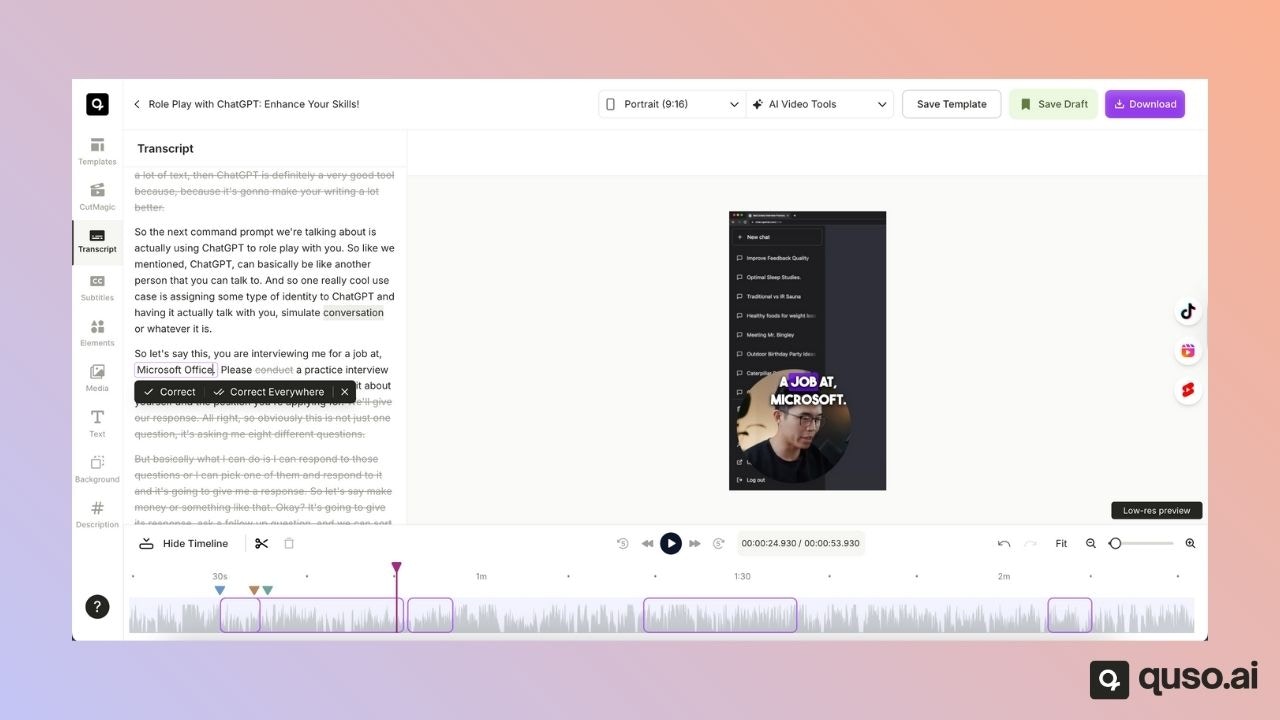
After correcting, you can choose:
• **Correct only here**\
• **Correct everywhere**
The **Correct everywhere** option is especially useful for fixing misspelled names or repeated errors across the entire transcript in one step.
***
## 🗑️ Remove a Word
Removing a word removes it completely from both the transcript and the video audio.
**Steps:**
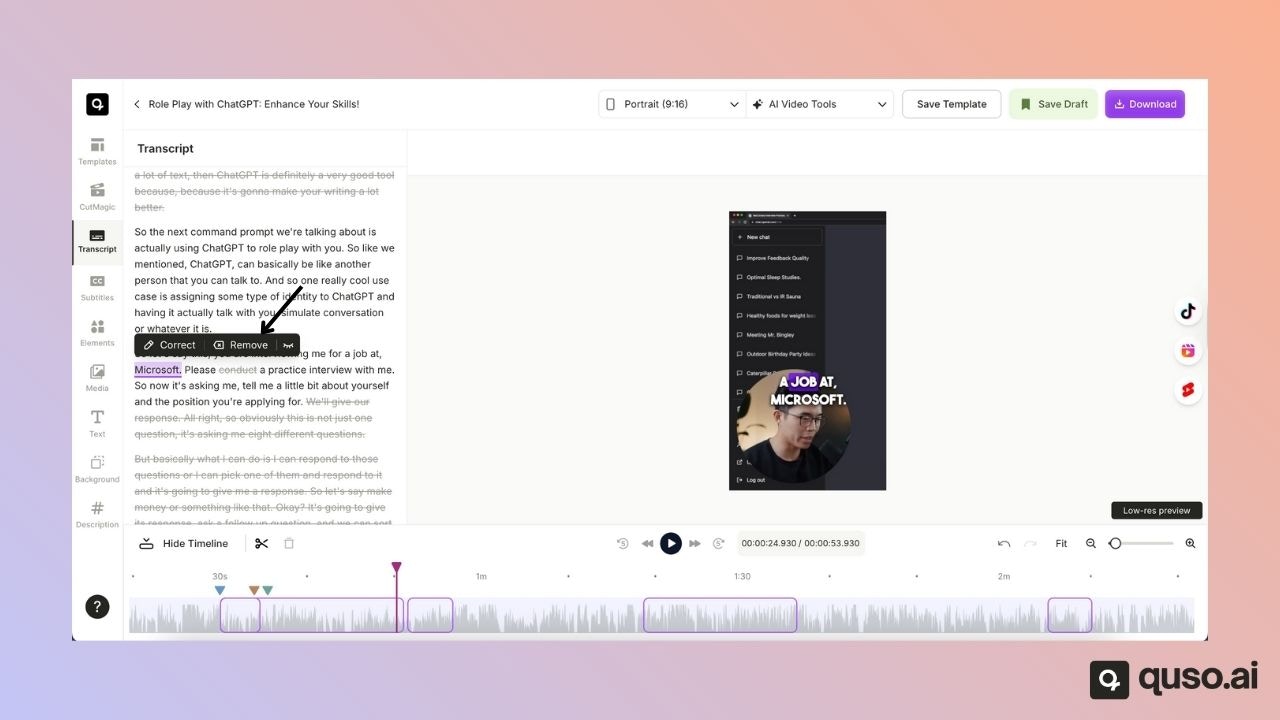
1. Select the word
2. Click **Remove**
***
## 🙈 Hide a Word from Captions
Hiding a word removes it only from the captions while keeping the video audio unchanged.
**Steps:**
1. Select the word
2. Click the **Hide** icon
This is perfect for censoring words or cleaning up captions without altering the video itself.
***
## ✅ Final Notes
The **Transcript-Based Editor** gives you full control over your video using simple text edits. Whether you’re trimming content, fixing transcription errors, or polishing captions, this tool helps you edit faster — without touching a timeline.
If you need help or have any questions, feel free to reach out to our support team 💬
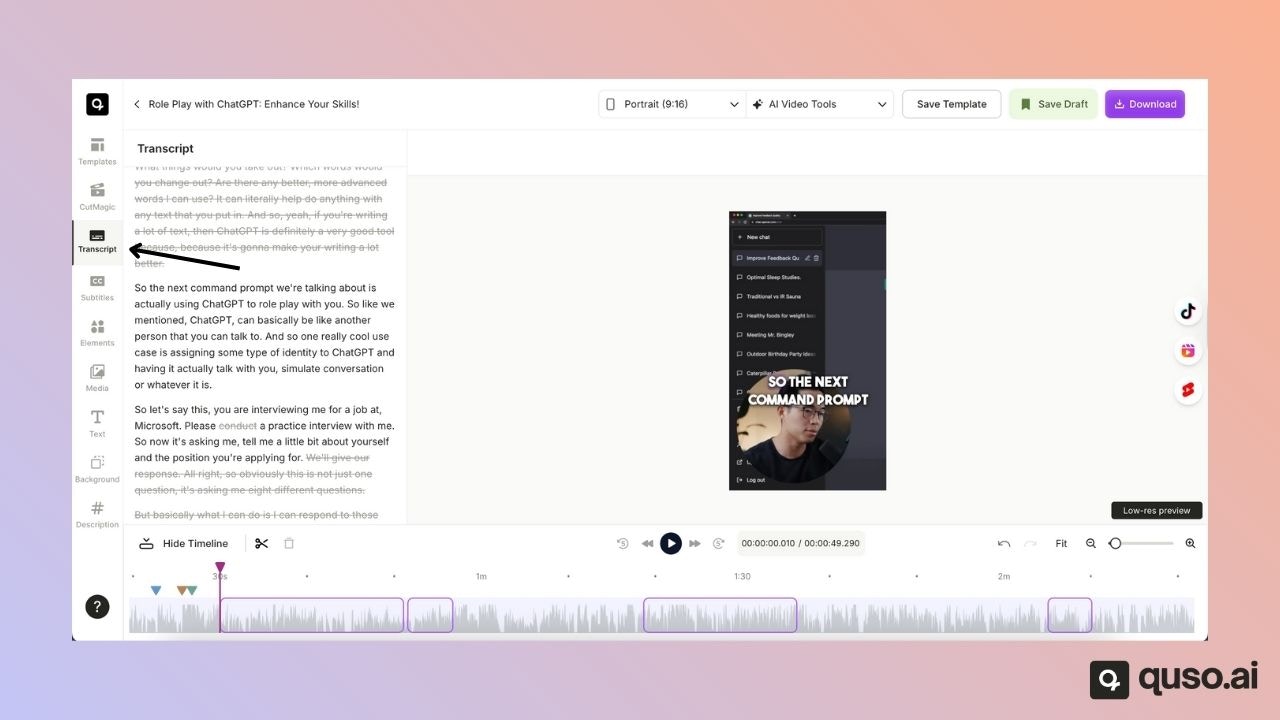 2. Select the portion of the transcript you want to remove
3. Click on **Remove**
2. Select the portion of the transcript you want to remove
3. Click on **Remove**
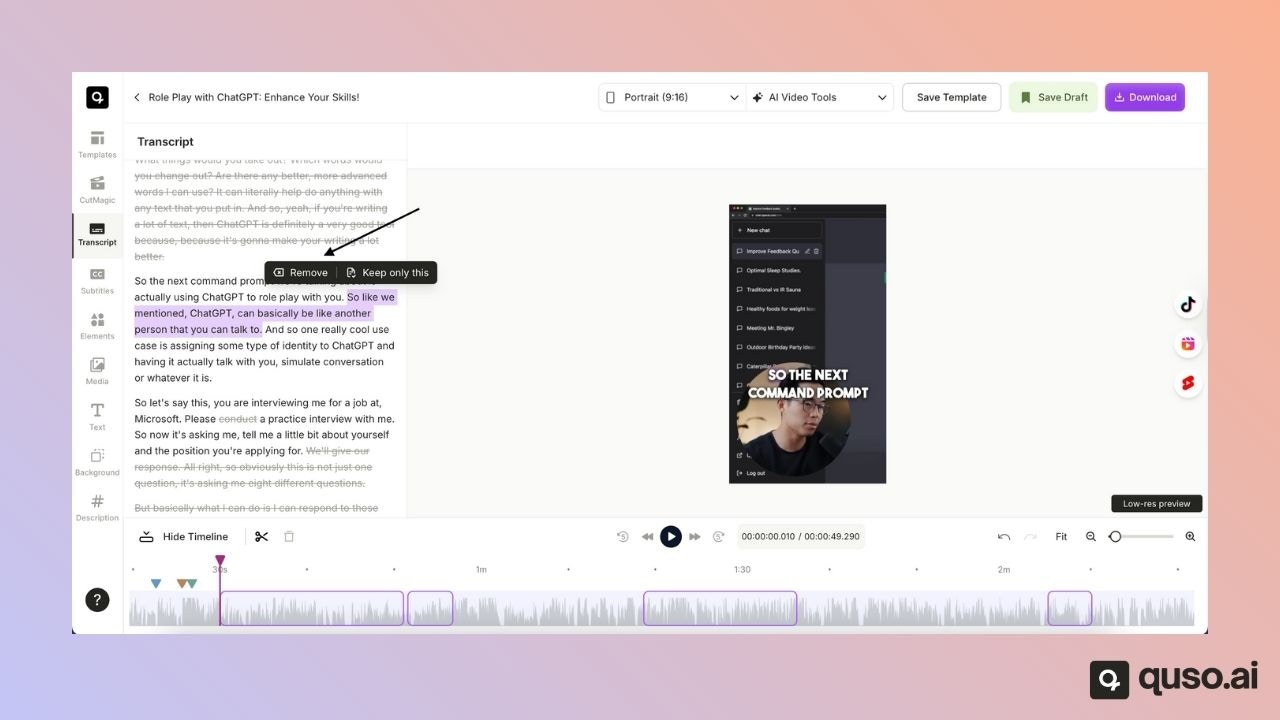 The selected portion will be removed from both the transcript and the video.
***
## 🔄 Restore Removed Portions of a Video
Accidentally removed something important? No problem — you can easily restore it.
**Steps:**
1. Open the transcript of the clip
2. Select the portion you want to restore
3. Click on **Restore**
The selected portion will be removed from both the transcript and the video.
***
## 🔄 Restore Removed Portions of a Video
Accidentally removed something important? No problem — you can easily restore it.
**Steps:**
1. Open the transcript of the clip
2. Select the portion you want to restore
3. Click on **Restore**
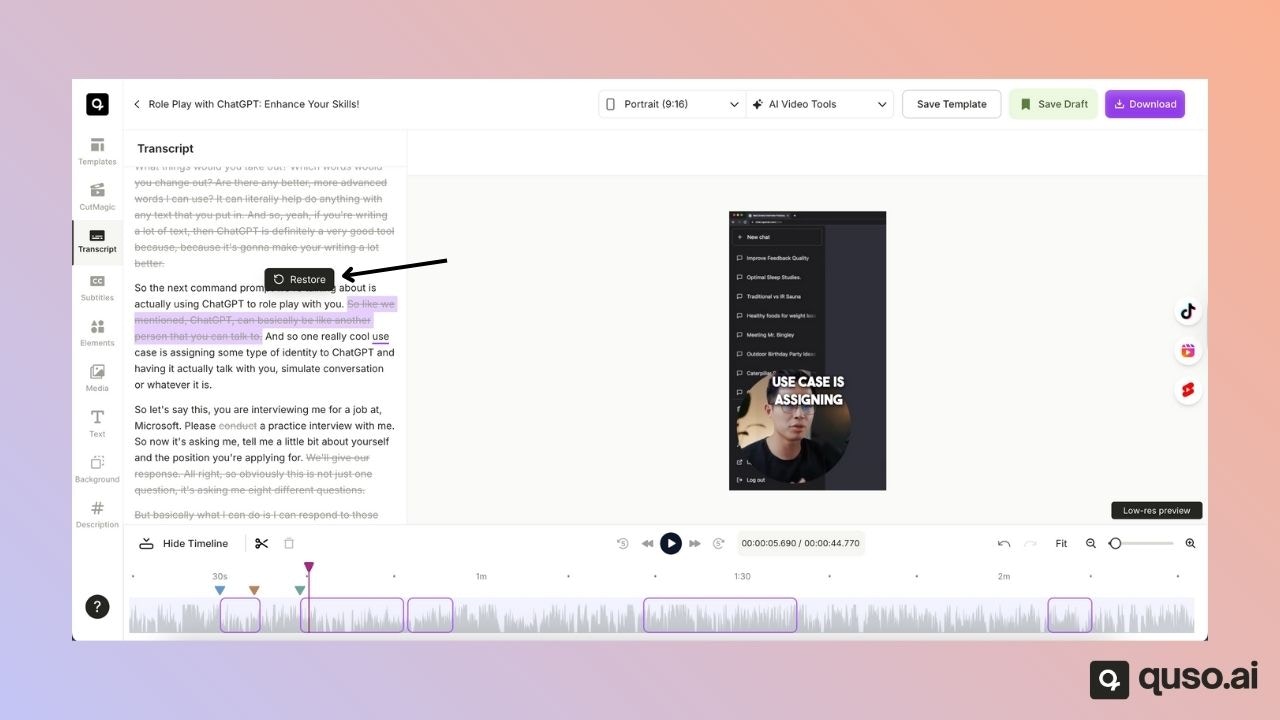 The selected section will be added back to the video.
### 🎯 Keep Only a Specific Section
If you want to keep just one part of the clip and remove everything else:
1. Select the desired section in the transcript
2. Click **Keep only this**
The selected section will be added back to the video.
### 🎯 Keep Only a Specific Section
If you want to keep just one part of the clip and remove everything else:
1. Select the desired section in the transcript
2. Click **Keep only this**
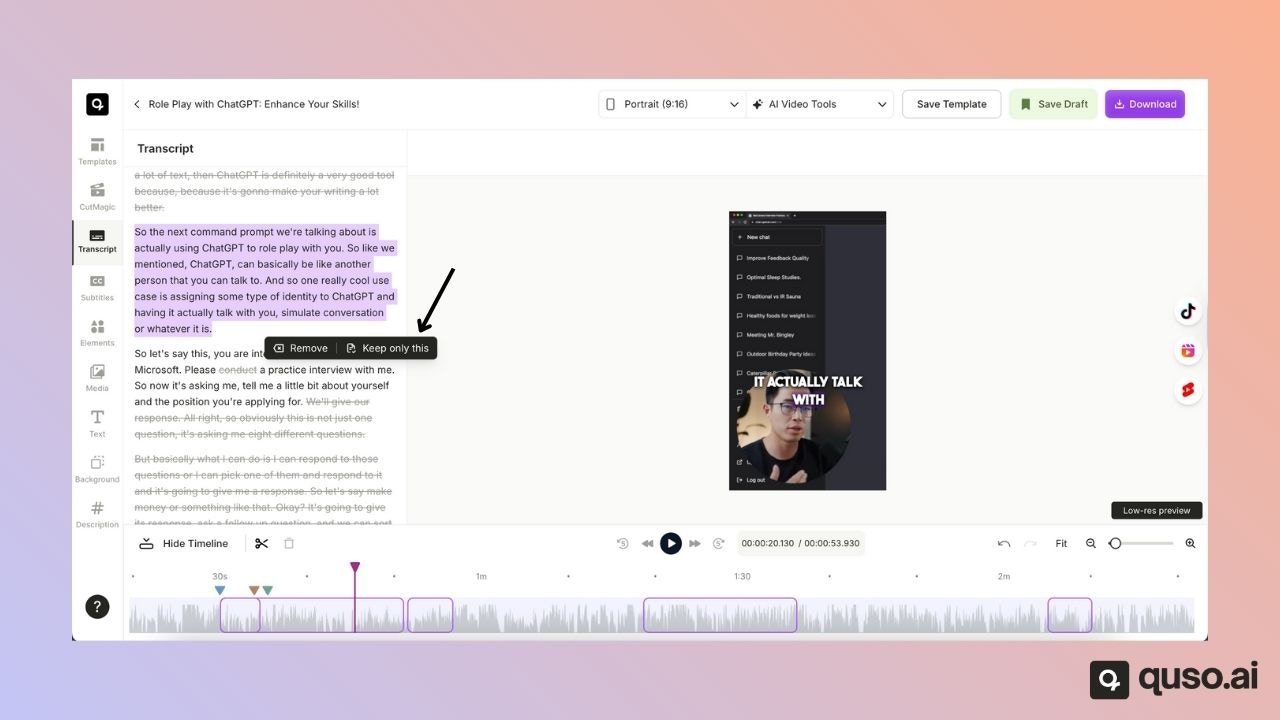 This trims the video to include only the selected portion.
***
## ✍️ Edit Words Directly in the Transcript
You can correct, delete, or hide individual words directly from the transcript editor — no re-exporting required
This trims the video to include only the selected portion.
***
## ✍️ Edit Words Directly in the Transcript
You can correct, delete, or hide individual words directly from the transcript editor — no re-exporting required
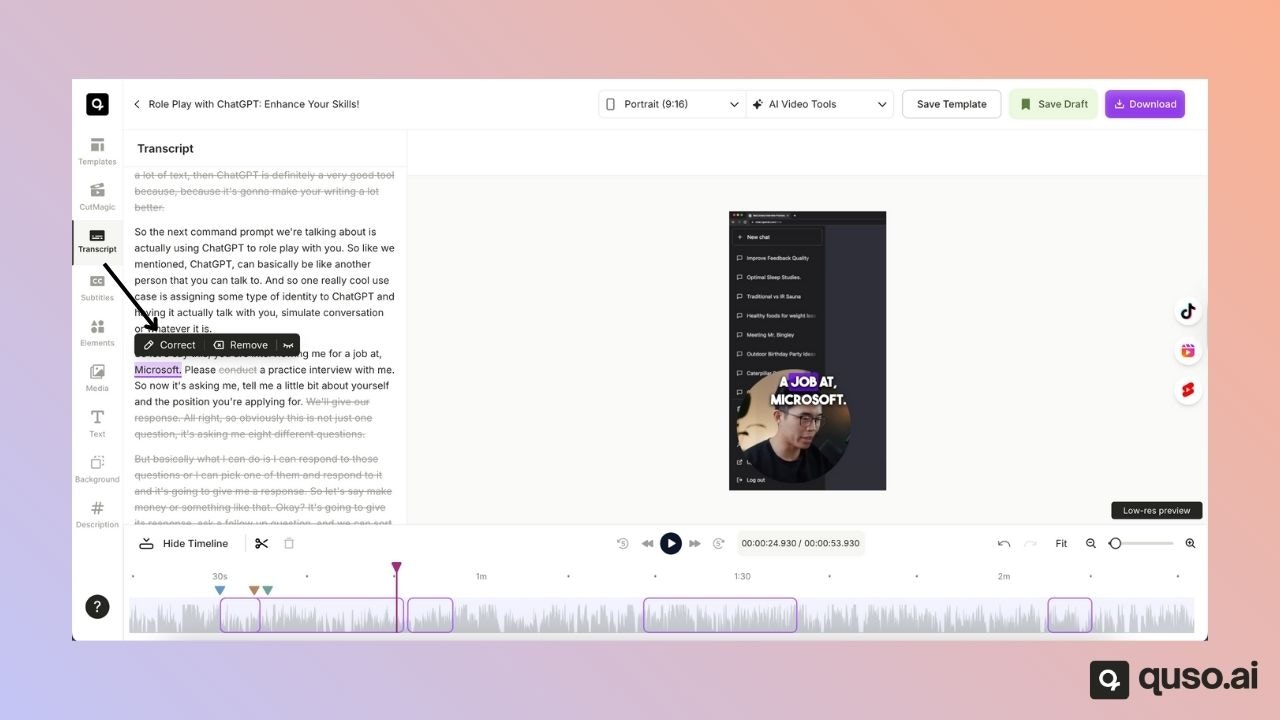 3. Type the updated word or phrase
After correcting, you can choose:
• **Correct only here**\
• **Correct everywhere**
The **Correct everywhere** option is especially useful for fixing misspelled names or repeated errors across the entire transcript in one step.
3. Type the updated word or phrase
After correcting, you can choose:
• **Correct only here**\
• **Correct everywhere**
The **Correct everywhere** option is especially useful for fixing misspelled names or repeated errors across the entire transcript in one step.
 ***
## 🗑️ Remove a Word
Removing a word removes it completely from both the transcript and the video audio.
**Steps:**
1. Select the word
2. Click **Remove**
***
## 🗑️ Remove a Word
Removing a word removes it completely from both the transcript and the video audio.
**Steps:**
1. Select the word
2. Click **Remove**
 ***
## 🙈 Hide a Word from Captions
Hiding a word removes it only from the captions while keeping the video audio unchanged.
**Steps:**
1. Select the word
2. Click the **Hide** icon
***
## 🙈 Hide a Word from Captions
Hiding a word removes it only from the captions while keeping the video audio unchanged.
**Steps:**
1. Select the word
2. Click the **Hide** icon
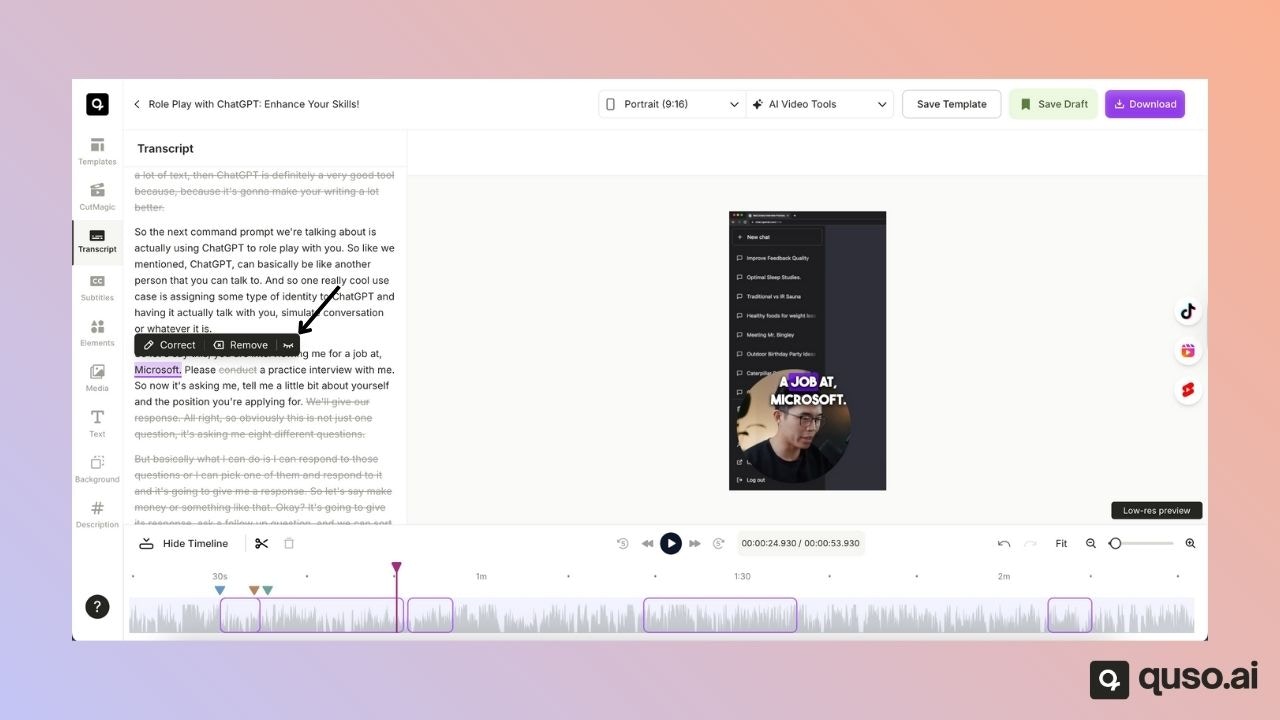 This is perfect for censoring words or cleaning up captions without altering the video itself.
***
## ✅ Final Notes
The **Transcript-Based Editor** gives you full control over your video using simple text edits. Whether you’re trimming content, fixing transcription errors, or polishing captions, this tool helps you edit faster — without touching a timeline.
If you need help or have any questions, feel free to reach out to our support team 💬
This is perfect for censoring words or cleaning up captions without altering the video itself.
***
## ✅ Final Notes
The **Transcript-Based Editor** gives you full control over your video using simple text edits. Whether you’re trimming content, fixing transcription errors, or polishing captions, this tool helps you edit faster — without touching a timeline.
If you need help or have any questions, feel free to reach out to our support team 💬