> ## Documentation Index
> Fetch the complete documentation index at: https://helpdesk.quso.ai/llms.txt
> Use this file to discover all available pages before exploring further.
# General FAQs
# Frequently Asked Questions
Welcome! Below you'll find answers to the most common questions about using [Quso.ai](http://Quso.ai).
***
## Getting Started
1. **Log in** to your [Quso.ai](http://Quso.ai) dashboard.
2. From the home page, **select the feature** you’d like to use:
* **AI Clips** – Automatically generate short highlight videos.
* **AI Captions** – Add or edit captions for your videos.
* **Edit a Video** – Launch the full video editor for custom edits.
3. You’ll see a short description under each feature to help you choose the right one.
4. **Follow the on-screen prompts** to upload your video or generate content using AI.
After login, you're taken to the dashboard by default. If not, click **“Home”** in the side menu. Open any project to access the video editor.
Supported formats: `.mp4`, `.mov`, `.webm` , `.m4v`
* **Free plan:** Max 5 GB/ 720p
* **Paid plans:** Up to 15GB / 1080p+
***
## AI Video Creation & Editing
1. From the home page, **select the feature**:
* **AI Clips** – Automatically generate short highlight videos.
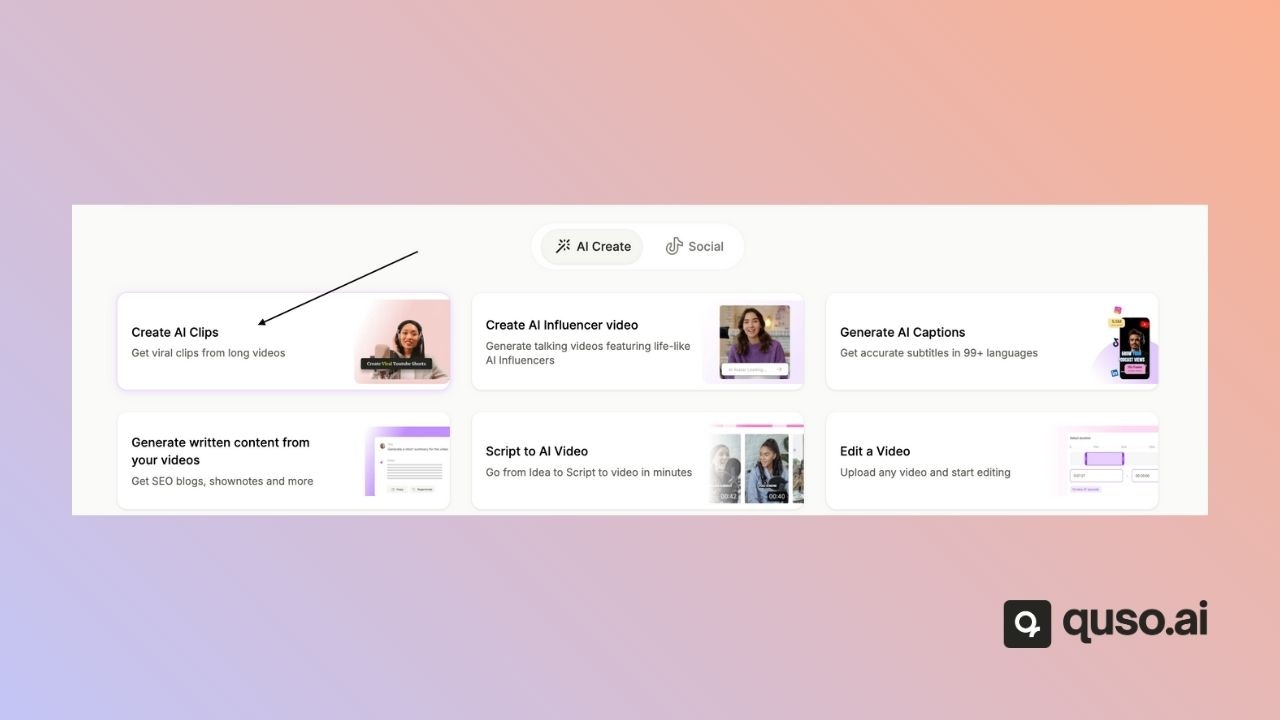 2. You’ll see a short description under each feature to help you choose the right one.
3. **Follow the on-screen prompts** to upload your video or generate content using AI.
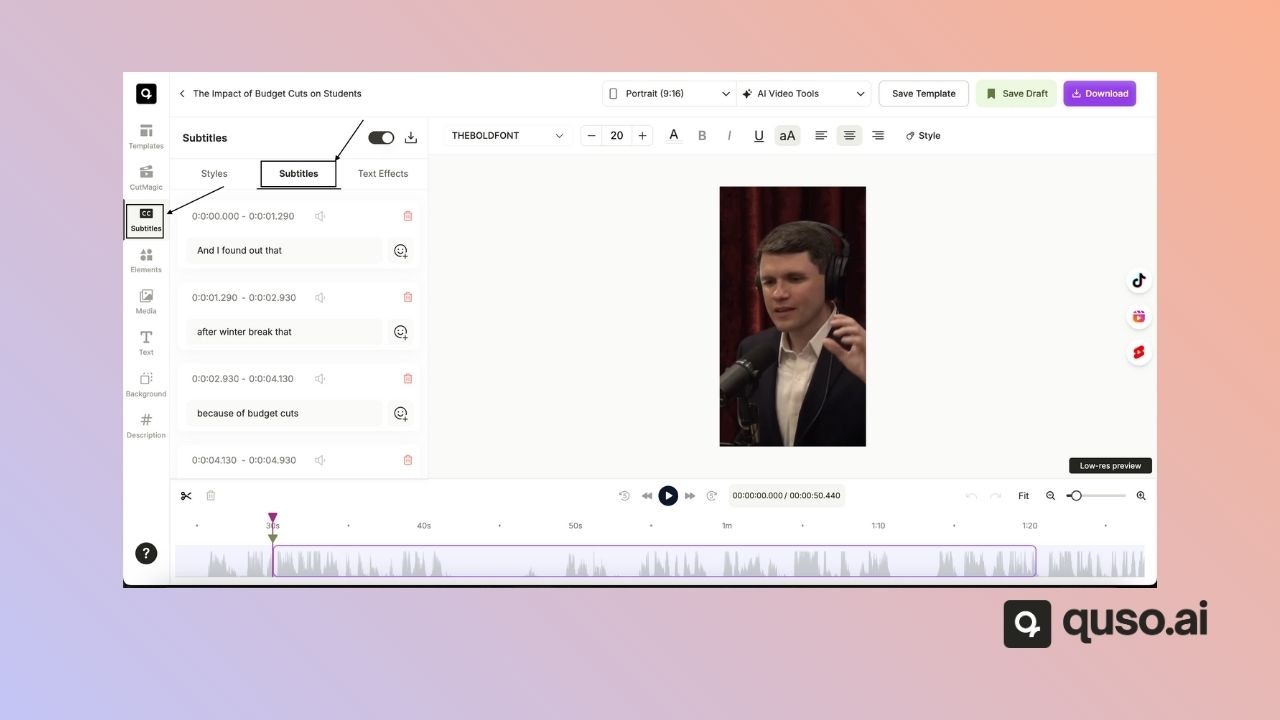
In the editor:
* Open the **Subtitles** tab
* Edit any subtitle box directly on the timeline
* Use the auto-generated captions or edit them manually
2. You’ll see a short description under each feature to help you choose the right one.
3. **Follow the on-screen prompts** to upload your video or generate content using AI.
In the editor:
* Open the **Subtitles** tab
* Edit any subtitle box directly on the timeline
* Use the auto-generated captions or edit them manually
 In the editor:
* Navigate to the **Audio** tab
* upload an audio file (MP3, WAV)
* Adjust timing in the B-roll tab
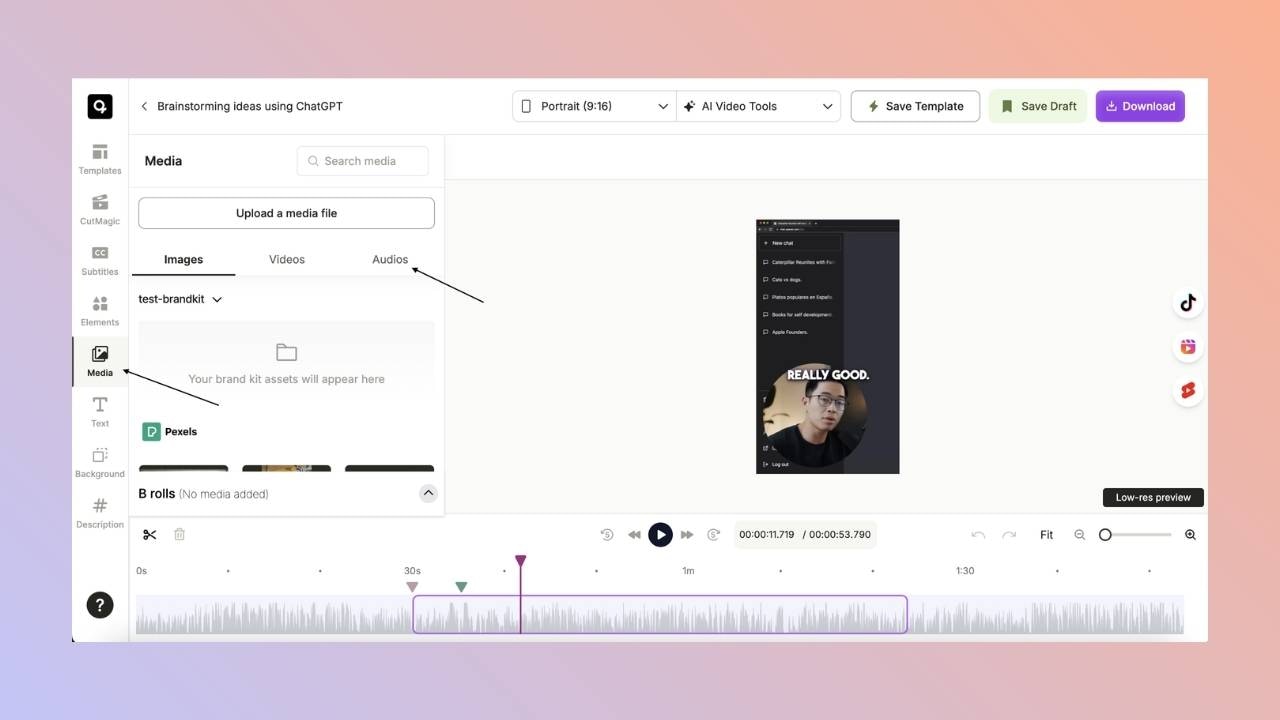
In the editor:
* Navigate to the **Audio** tab
* upload an audio file (MP3, WAV)
* Adjust timing in the B-roll tab
 We do not have this feature on our platform.
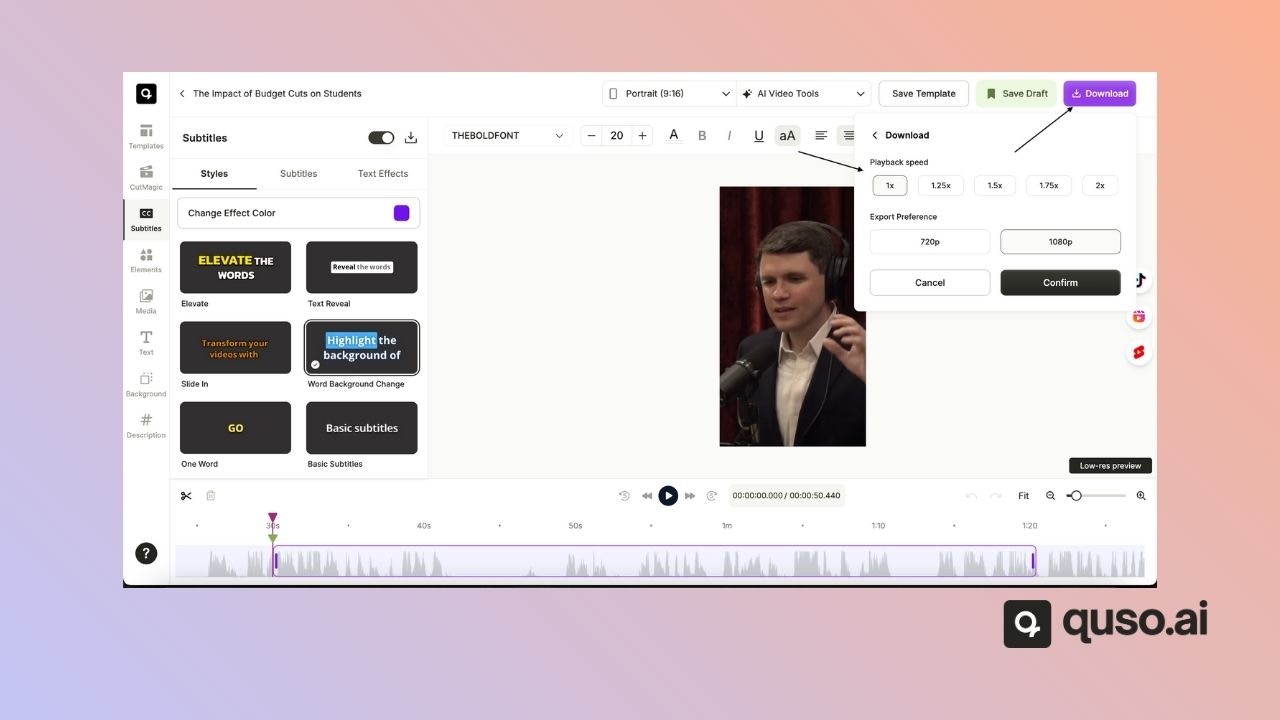
* Select the clip you want
* Click on the download button
* Over at the download option, you can select the playback speed for the downloaded video
We do not have this feature on our platform.
* Select the clip you want
* Click on the download button
* Over at the download option, you can select the playback speed for the downloaded video
 * After editing, click **Save as Template**
* You will get the option to name the template before you save it
* It’ll be available under the **Templates** tab for reuse
* After editing, click **Save as Template**
* You will get the option to name the template before you save it
* It’ll be available under the **Templates** tab for reuse
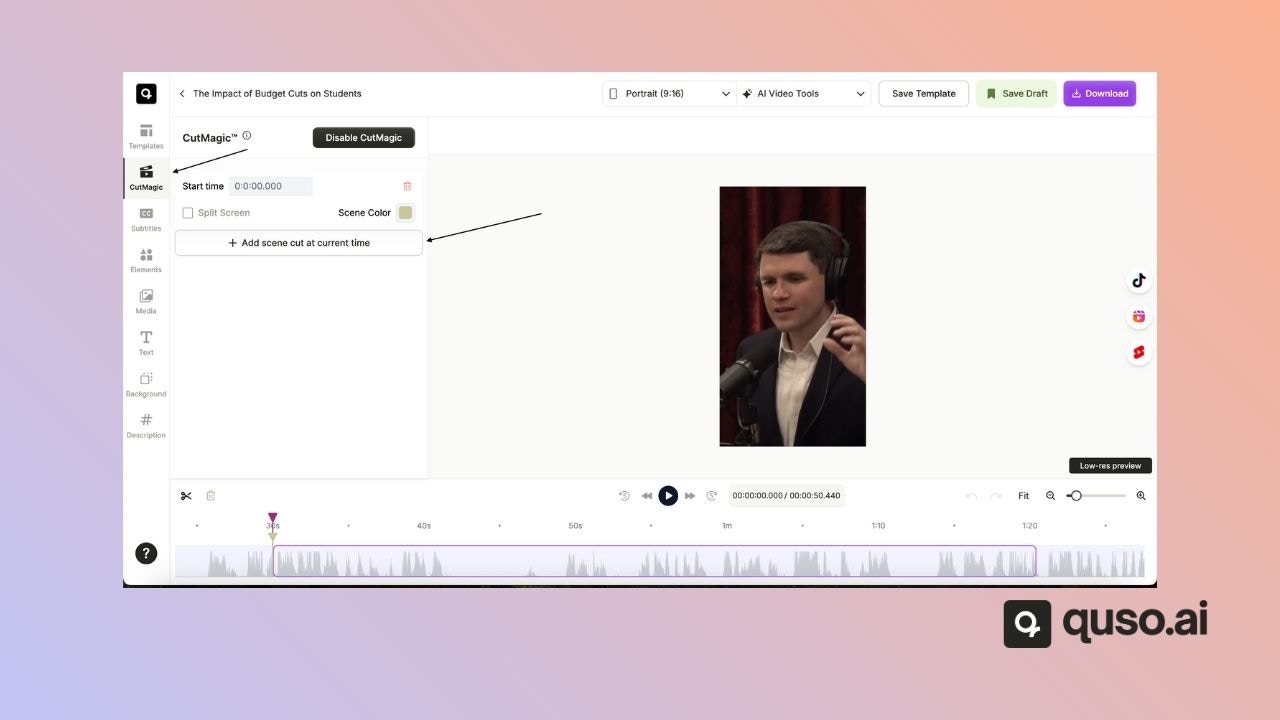
.jpg?fit=max&auto=format&n=PPQxl57wXfGcWExH&q=85&s=ff533913db04f9c8e263a553eab22350) In the CutMagic menu in the Editor:
* Go to the point in the video where you would like to add the scene
* Click **Add Scene Cut at Current Time**
* Readjust the frame to your liking; you can also toggle the split-screen option.
In the CutMagic menu in the Editor:
* Go to the point in the video where you would like to add the scene
* Click **Add Scene Cut at Current Time**
* Readjust the frame to your liking; you can also toggle the split-screen option.
 Here are some things to keep in mind while uploading videos using AI clips:
* The video must be over 3 minutes in length
* The video must have spoken words.
* Make sure to select the correct language while uploading the video.
If you select English as the language and the video is in French, no clips will get generated.
Our platform uses the transcript generated from the videos to create clips.
While the video is processing, you can find it in the downloads section on the review page or the all downloads section on the home page.
Here are some things to keep in mind while uploading videos using AI clips:
* The video must be over 3 minutes in length
* The video must have spoken words.
* Make sure to select the correct language while uploading the video.
If you select English as the language and the video is in French, no clips will get generated.
Our platform uses the transcript generated from the videos to create clips.
While the video is processing, you can find it in the downloads section on the review page or the all downloads section on the home page.
Once the video is successfully downloaded, you can find it in the downloads section of your browser.
***
## Plans, Credits & Upgrades
Credits are used whenever you process or create content in [Quso.ai](http://Quso.ai) — such as AI Clips, Captions, or Text-to-Video.
* **1 credit = 1 minute of video**, rounded up to the nearest minute.
* Credits are shown **before** any action is processed.
* On **monthly plans**, credits renew each month and unused credits **expire**.
* On **annual plans**, you get all credits upfront for the year.
* **Add-on credits** (purchased separately) **do not expire**.
* Failed or unprocessed videos are **auto-refunded**.
* In team workspaces, credits are **shared** across all members.
You’ve either:
* Used your free credits
* Accessed a premium-only feature
Upgrade to a paid plan to continue.
Yes, but availability may vary based on location or IP. If you can’t access it, contact support.
No, the Plus plan does not have social media features.
***
## Billing & Currency
* [Quso.ai](http://Quso.ai) sets the currency based on your location
* Currency cannot be changed manually at this time
* Contact support for region-specific issues
* **Monthly:** Non-refundable
* **Annual:** Non-refundable
To request, contact [support@quso.ai](mailto:support@quso.ai) or submit a ticket.
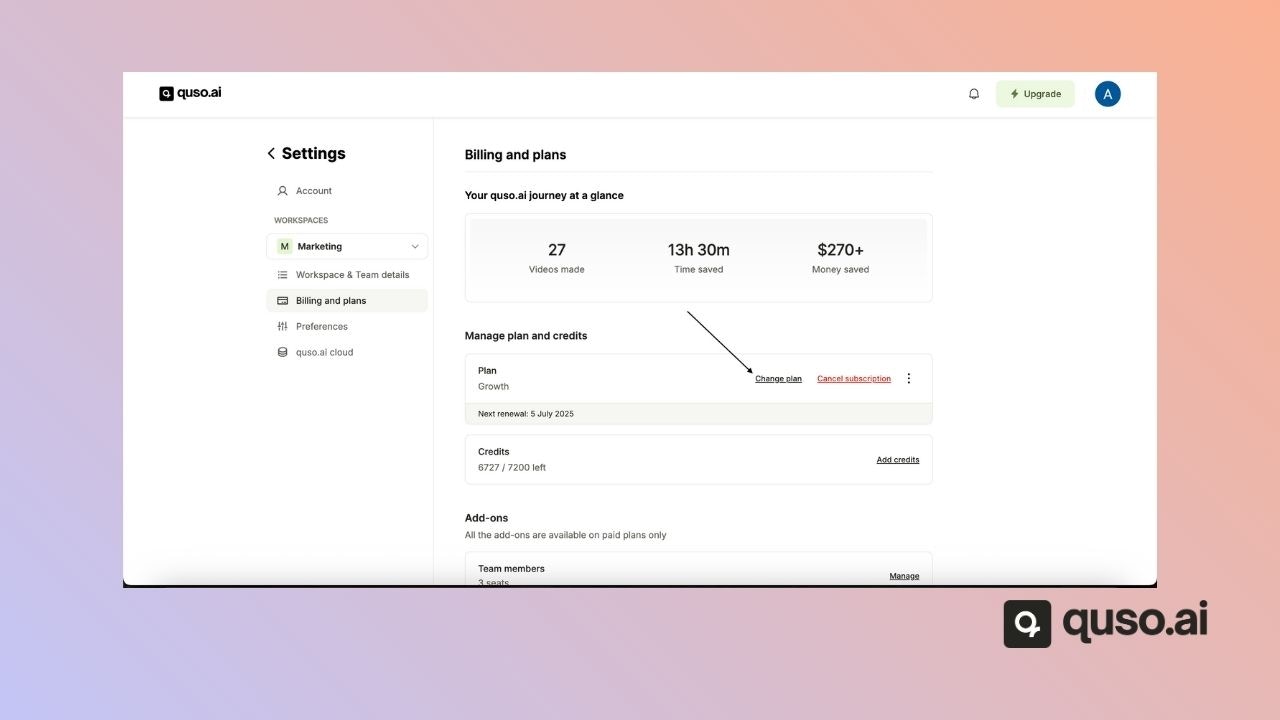
1. Go to **Billing & Plans**
2. Click **Cancel Plan**
3. Your plan remains active until the billing cycle ends
 ***
## Platform Navigation & UI
We do not have these features available on the platform.
You can find the New Project button in the top right corner of the screen.
Alternatively you can also upload your videos, from the **home page**, simply **select the feature** you want to use:
* **AI Clips** – Auto-generate short highlight videos
* **AI Captions** – Add or edit captions
* **Edit a Video** – Use the full video editor
Each option includes a short description to help you decide. After selecting a feature, you'll be guided through the **upload process**.
***
## Troubleshooting
Check:
* Format: `.mp4`, `.mov`, `.webm`
* File size: under your plan’s limit
* Browser: try Chrome
* Clear cache or disable extensions
* If the issue persists, contact support — it could be a bug
* The file may be too long
* The server may be overloaded
* Content may be unsupported (e.g., selecting the wrong language while uploading)
* If the issue persists, contact support — it could be a bug
Try again later or split the video.
* Re-download with a stable internet
* Make sure your device has storage
* If the issue persists, contact support — it could be a bug
* Check original video quality
* Re-render if clips were low-res
* If still blurry, contact support — it could be a bug
***
## Account Management
* Click **Forgot Password** on the login page
* Follow the reset link in your email
* Check spam folder
* Re-send the verification email from the login page
* Double-check your email address
* If the issue persists, contact support — it could be a bug
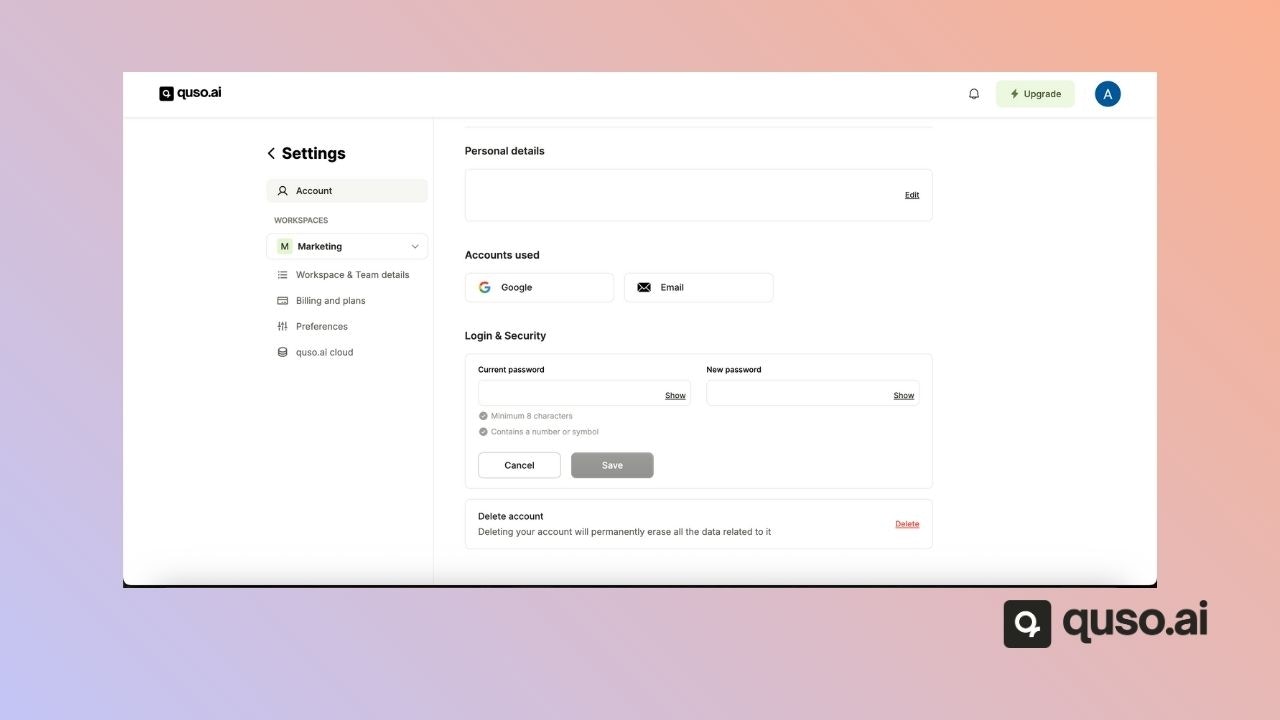
1. Go to **Settings → Security**
2. Click **Change Password**
***
## Platform Navigation & UI
We do not have these features available on the platform.
You can find the New Project button in the top right corner of the screen.
Alternatively you can also upload your videos, from the **home page**, simply **select the feature** you want to use:
* **AI Clips** – Auto-generate short highlight videos
* **AI Captions** – Add or edit captions
* **Edit a Video** – Use the full video editor
Each option includes a short description to help you decide. After selecting a feature, you'll be guided through the **upload process**.
***
## Troubleshooting
Check:
* Format: `.mp4`, `.mov`, `.webm`
* File size: under your plan’s limit
* Browser: try Chrome
* Clear cache or disable extensions
* If the issue persists, contact support — it could be a bug
* The file may be too long
* The server may be overloaded
* Content may be unsupported (e.g., selecting the wrong language while uploading)
* If the issue persists, contact support — it could be a bug
Try again later or split the video.
* Re-download with a stable internet
* Make sure your device has storage
* If the issue persists, contact support — it could be a bug
* Check original video quality
* Re-render if clips were low-res
* If still blurry, contact support — it could be a bug
***
## Account Management
* Click **Forgot Password** on the login page
* Follow the reset link in your email
* Check spam folder
* Re-send the verification email from the login page
* Double-check your email address
* If the issue persists, contact support — it could be a bug
1. Go to **Settings → Security**
2. Click **Change Password**
 * Visit \[[**quso.ai**](http://quso.ai)]\([**https://quso.ai**](https://quso.ai))
* Log in with your email or a linked Google/Facebook account
***
## Advanced & Developer Features
Not at the moment. You can contact support to register your interest.
1. After editing, click **Schedule**
2. Choose the publish date/time
3. Available for TikTok, YouTube, Facebook, Instagram, LinkedIn, X (Twitter), and Pinterest.
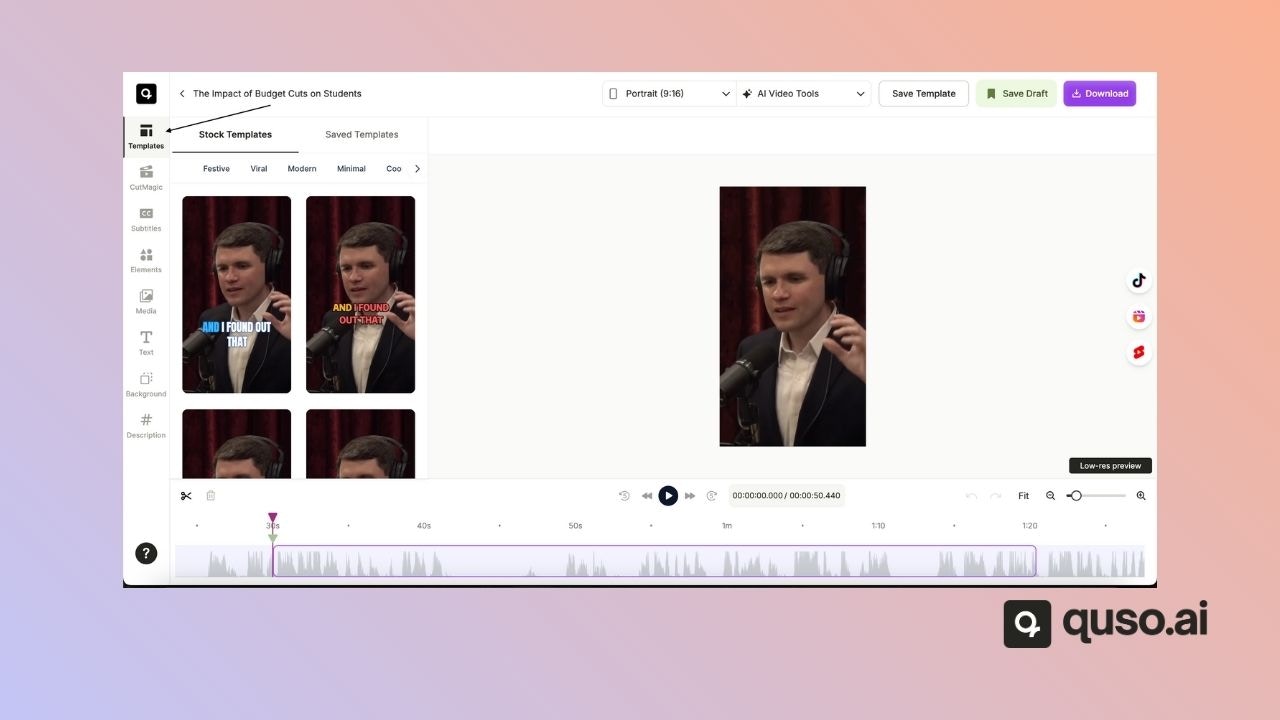
Go to the editor for the clip you choose:
* Head to the templates tab
* Select one from the stock templates or one of your saved templates
* Visit \[[**quso.ai**](http://quso.ai)]\([**https://quso.ai**](https://quso.ai))
* Log in with your email or a linked Google/Facebook account
***
## Advanced & Developer Features
Not at the moment. You can contact support to register your interest.
1. After editing, click **Schedule**
2. Choose the publish date/time
3. Available for TikTok, YouTube, Facebook, Instagram, LinkedIn, X (Twitter), and Pinterest.
Go to the editor for the clip you choose:
* Head to the templates tab
* Select one from the stock templates or one of your saved templates
 ***
## Support
* Use the in-app **Help** widget
* Email: [**support@quso.ai**](mailto:support@quso.ai)
* Submit a ticket at the [Help Center](https://qusoai.frontkb.com/en/contact-us)
***
***
## Support
* Use the in-app **Help** widget
* Email: [**support@quso.ai**](mailto:support@quso.ai)
* Submit a ticket at the [Help Center](https://qusoai.frontkb.com/en/contact-us)
***