> ## Documentation Index
> Fetch the complete documentation index at: https://helpdesk.quso.ai/llms.txt
> Use this file to discover all available pages before exploring further.
# Publish or Schedule Posts to Multiple Platforms
This guide explains how to publish or schedule your posts to multiple social media platforms directly from [Quso.ai](http://Quso.ai) with just a few clicks. Once your video is ready, you can easily generate descriptions, upload thumbnails, preview posts, and schedule them for automatic publishing.
***
## Step 1: Navigate to the Publish Section
After you finish editing your video:
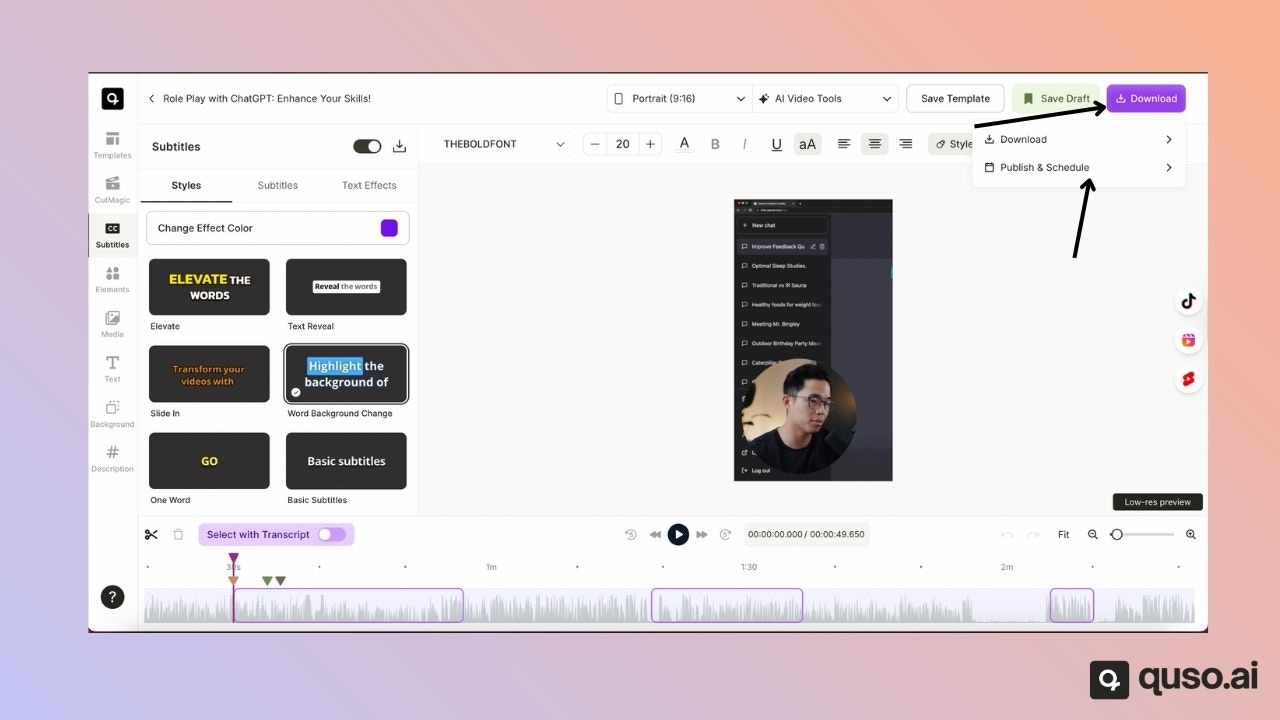
1. Go to **Downloads**
2. Select **Publish**
3. Click **Schedule**
You will now see the list of platforms available for publishing.
***
## Step 2: Link Your Social Accounts
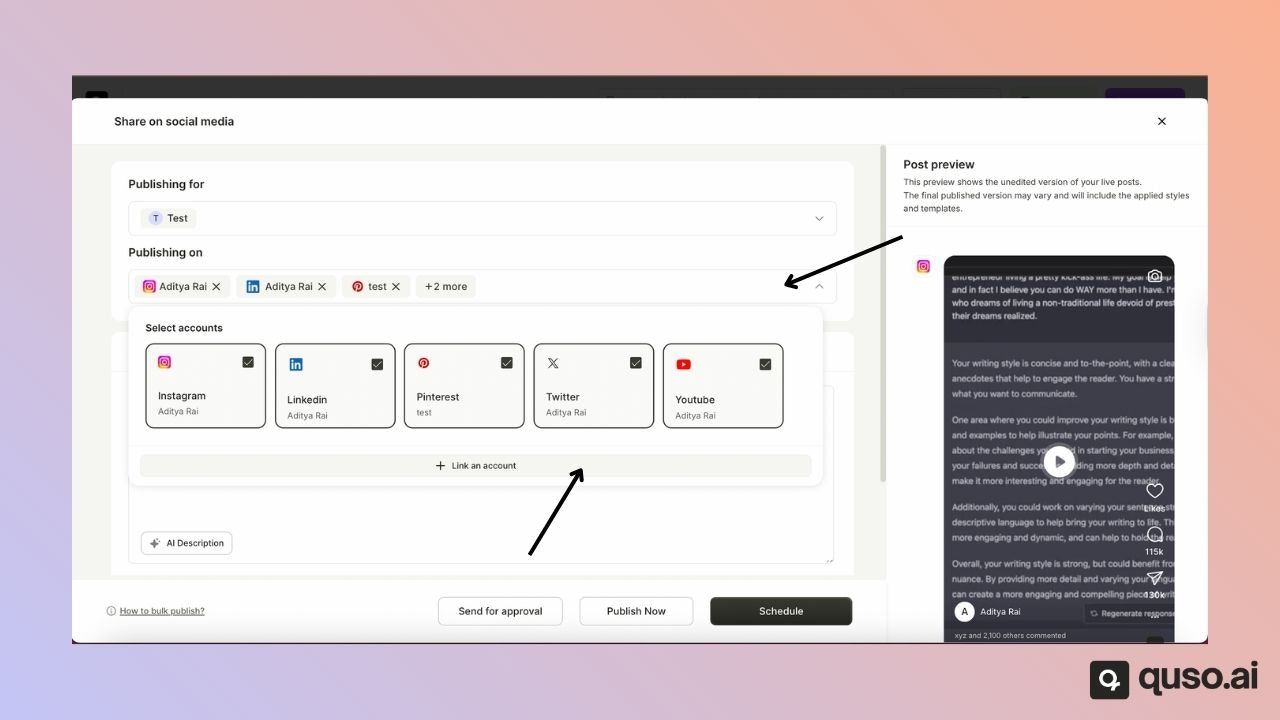
* If your accounts are already linked, you will see them listed.
* If not, click **Link** next to the platform you want to connect.
* Once linked, close the window, and the connected account will appear in your list.
***
## Step 3: Generate a Description
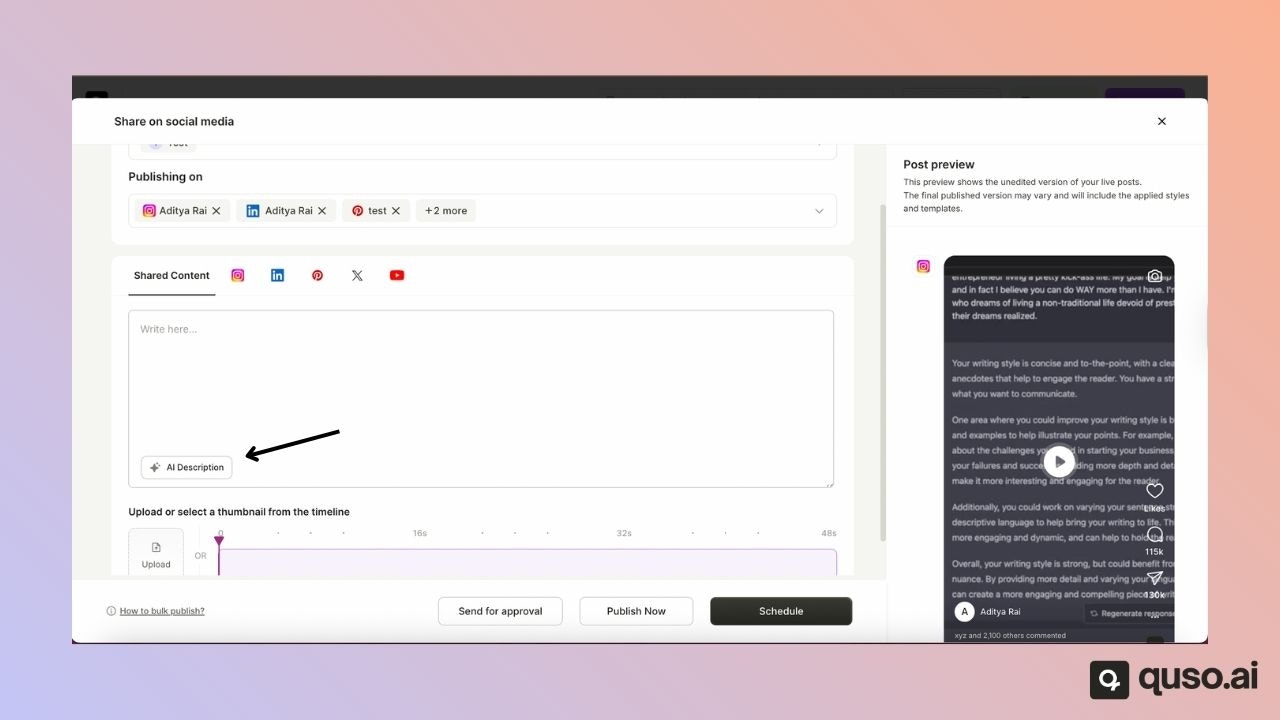
Use the built-in tools to generate a caption or write your own.\
This description will be used when your post is published.
***
## Step 4: Upload or Select a Thumbnail
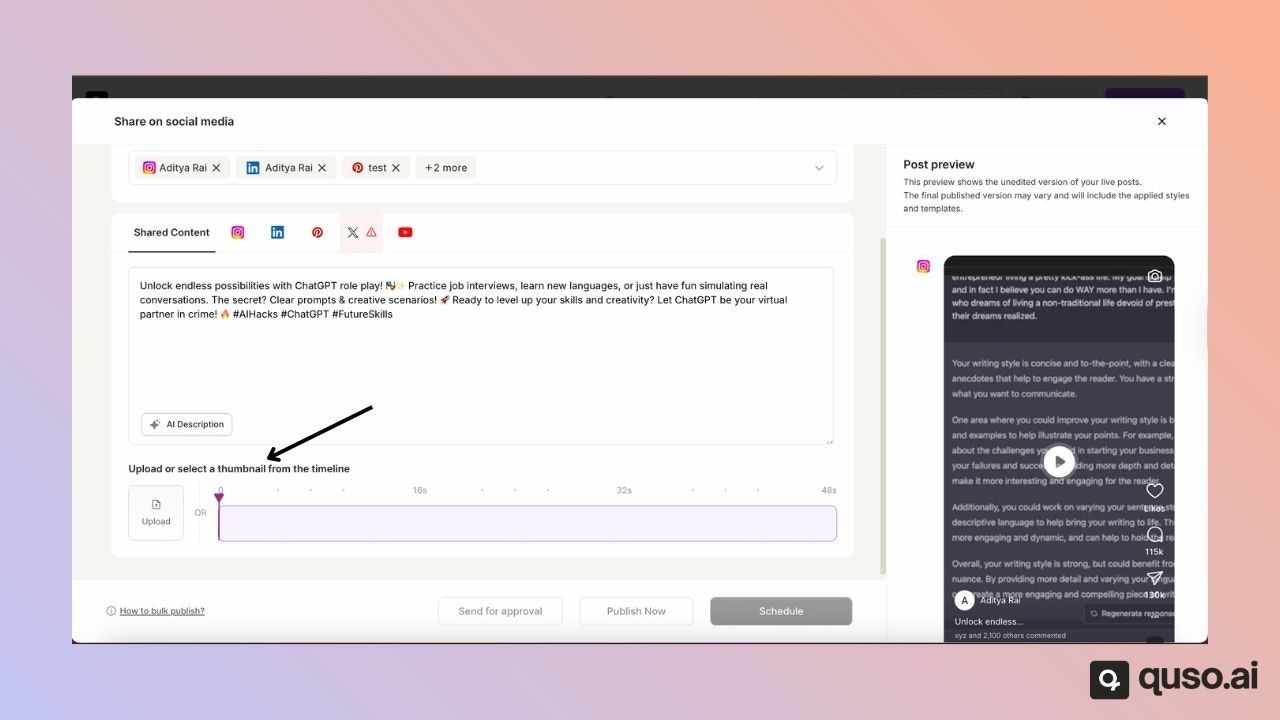
You can:
* Upload your own custom thumbnail, or
* Choose a frame from your video to use as the thumbnail.
***
## Step 5: View the Post Preview
You will see a mobile-style preview of your post.
Note:\
This preview does **not** display your final edited template or subtitle style. It only shows how your post will appear on social platforms when viewed on a phone.
***
## Step 6: Schedule Your Post
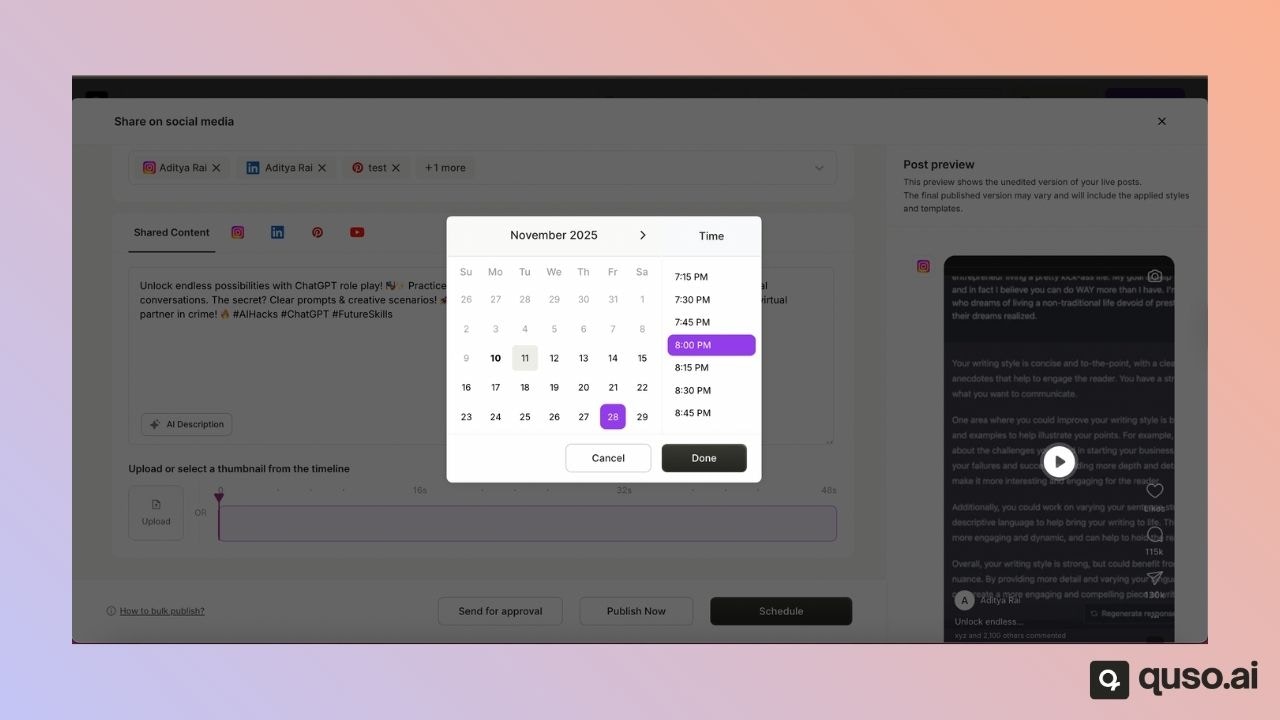
* Select the date and time you want your post to go live.
* For example, you can schedule it for the **28th at 8:00 PM**.
* Once confirmed, the scheduling process will begin. This may take a few minutes.
You can return to Downloads while the system processes your schedule.
***
## Step 7: Check Scheduled Posts
Once loaded, you will see which platforms the post has been scheduled for.\
Scheduled or published posts will appear here.
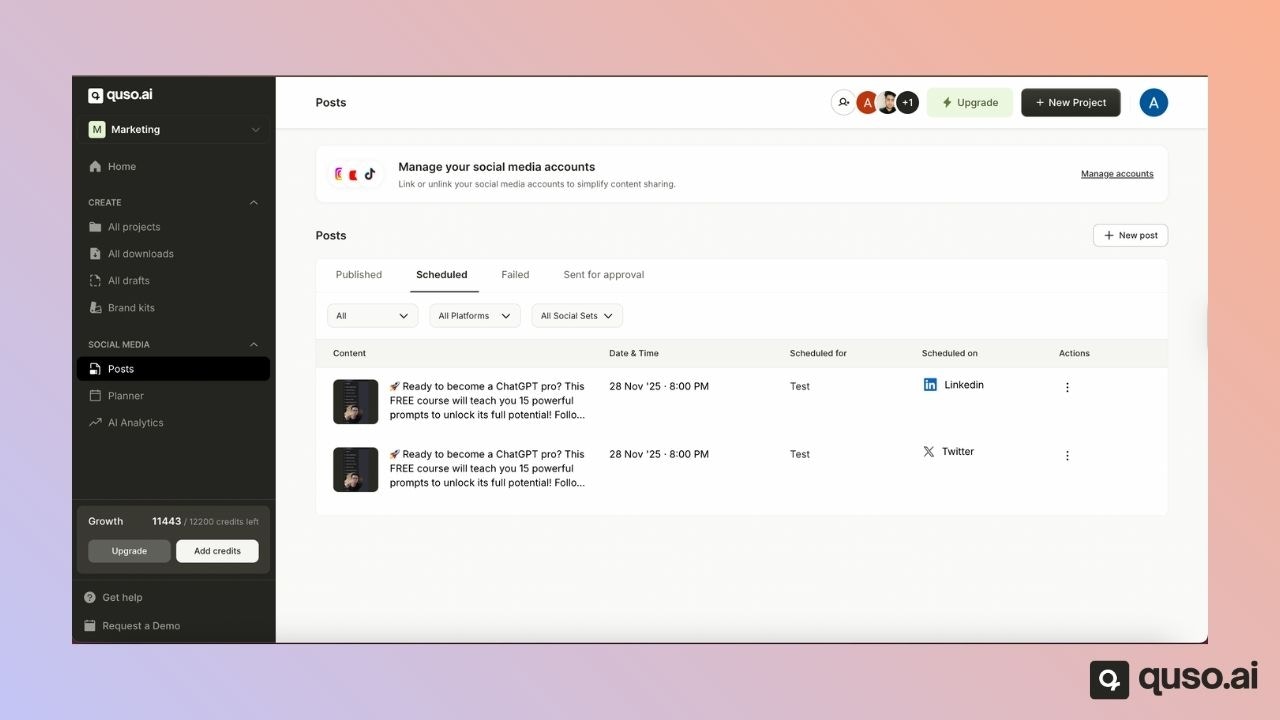
* Open **Scheduled Posts**
* You will see the post listed with its scheduled time
For example, your post may show as scheduled for TikTok and YouTube.
***
## Managing Scheduled Posts
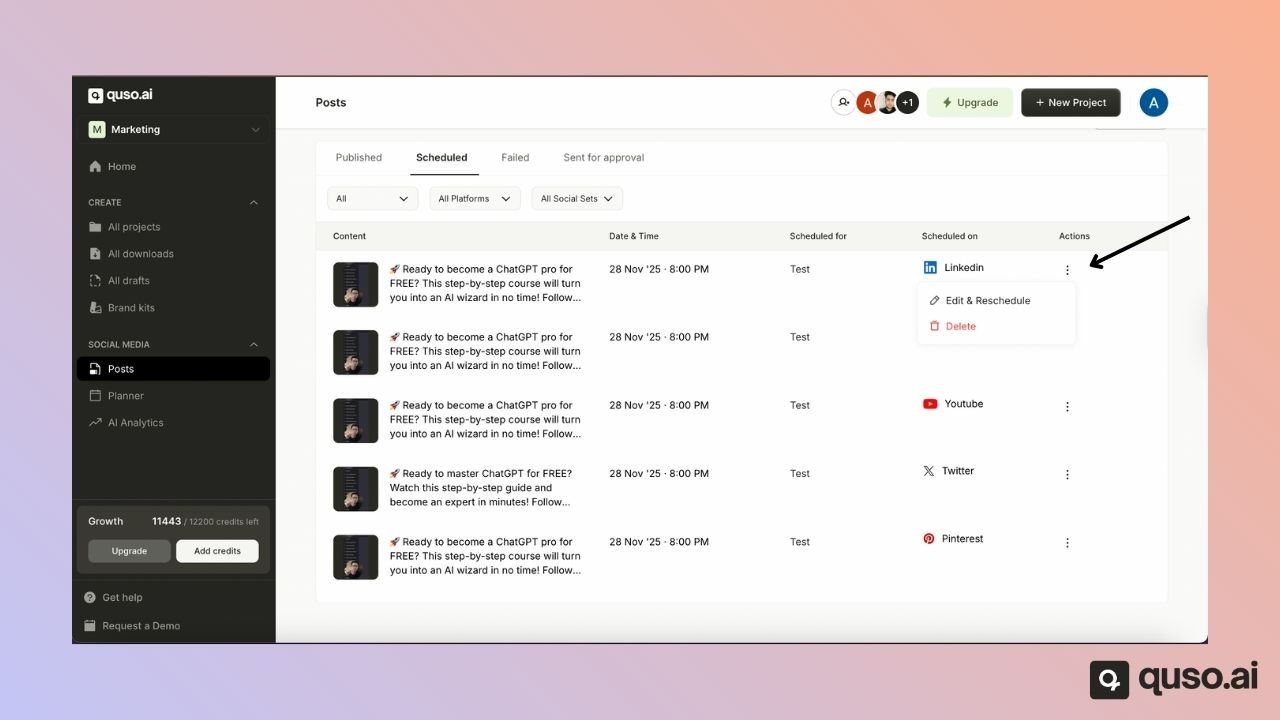
You can also **delete, edit, or reschedule your scheduled posts** directly from the Scheduled Posts page.\
If you no longer want a post to go live, simply select it and delete it before the scheduled time.
***
## That’s It!
You have now successfully scheduled your post across multiple platforms using [Quso.ai](http://Quso.ai).
 ***
## Step 2: Link Your Social Accounts
* If your accounts are already linked, you will see them listed.
* If not, click **Link** next to the platform you want to connect.
* Once linked, close the window, and the connected account will appear in your list.
***
## Step 2: Link Your Social Accounts
* If your accounts are already linked, you will see them listed.
* If not, click **Link** next to the platform you want to connect.
* Once linked, close the window, and the connected account will appear in your list.
 ***
## Step 3: Generate a Description
Use the built-in tools to generate a caption or write your own.\
This description will be used when your post is published.
***
## Step 3: Generate a Description
Use the built-in tools to generate a caption or write your own.\
This description will be used when your post is published.
 ***
## Step 4: Upload or Select a Thumbnail
You can:
* Upload your own custom thumbnail, or
* Choose a frame from your video to use as the thumbnail.
***
## Step 4: Upload or Select a Thumbnail
You can:
* Upload your own custom thumbnail, or
* Choose a frame from your video to use as the thumbnail.
 ***
## Step 5: View the Post Preview
You will see a mobile-style preview of your post.
Note:\
This preview does **not** display your final edited template or subtitle style. It only shows how your post will appear on social platforms when viewed on a phone.
***
## Step 6: Schedule Your Post
* Select the date and time you want your post to go live.
* For example, you can schedule it for the **28th at 8:00 PM**.
* Once confirmed, the scheduling process will begin. This may take a few minutes.
You can return to Downloads while the system processes your schedule.
***
## Step 5: View the Post Preview
You will see a mobile-style preview of your post.
Note:\
This preview does **not** display your final edited template or subtitle style. It only shows how your post will appear on social platforms when viewed on a phone.
***
## Step 6: Schedule Your Post
* Select the date and time you want your post to go live.
* For example, you can schedule it for the **28th at 8:00 PM**.
* Once confirmed, the scheduling process will begin. This may take a few minutes.
You can return to Downloads while the system processes your schedule.
 ***
## Step 7: Check Scheduled Posts
Once loaded, you will see which platforms the post has been scheduled for.\
Scheduled or published posts will appear here.
* Open **Scheduled Posts**
* You will see the post listed with its scheduled time
For example, your post may show as scheduled for TikTok and YouTube.
***
## Step 7: Check Scheduled Posts
Once loaded, you will see which platforms the post has been scheduled for.\
Scheduled or published posts will appear here.
* Open **Scheduled Posts**
* You will see the post listed with its scheduled time
For example, your post may show as scheduled for TikTok and YouTube.
 ***
## Managing Scheduled Posts
You can also **delete, edit, or reschedule your scheduled posts** directly from the Scheduled Posts page.\
If you no longer want a post to go live, simply select it and delete it before the scheduled time.
***
## Managing Scheduled Posts
You can also **delete, edit, or reschedule your scheduled posts** directly from the Scheduled Posts page.\
If you no longer want a post to go live, simply select it and delete it before the scheduled time.
 ***
## That’s It!
You have now successfully scheduled your post across multiple platforms using [Quso.ai](http://Quso.ai).
***
## That’s It!
You have now successfully scheduled your post across multiple platforms using [Quso.ai](http://Quso.ai).