

What’s New in CutMagic
CutMagic’s detection system has been enhanced to better identify screens, faces, and camera angles in your video. This means:- Smarter scene detection — CutMagic now recognizes more types of content (screen recordings, single speakers, multi-speaker panels, and more) and applies suitable layouts automatically.
- More layout options — You can now choose from 9 different layout types per scene, giving you more control over how your video looks in portrait (9:16) format.
- Less manual editing — Because the AI handles the initial layout and framing, you spend less time adjusting scenes yourself.
Layout Types
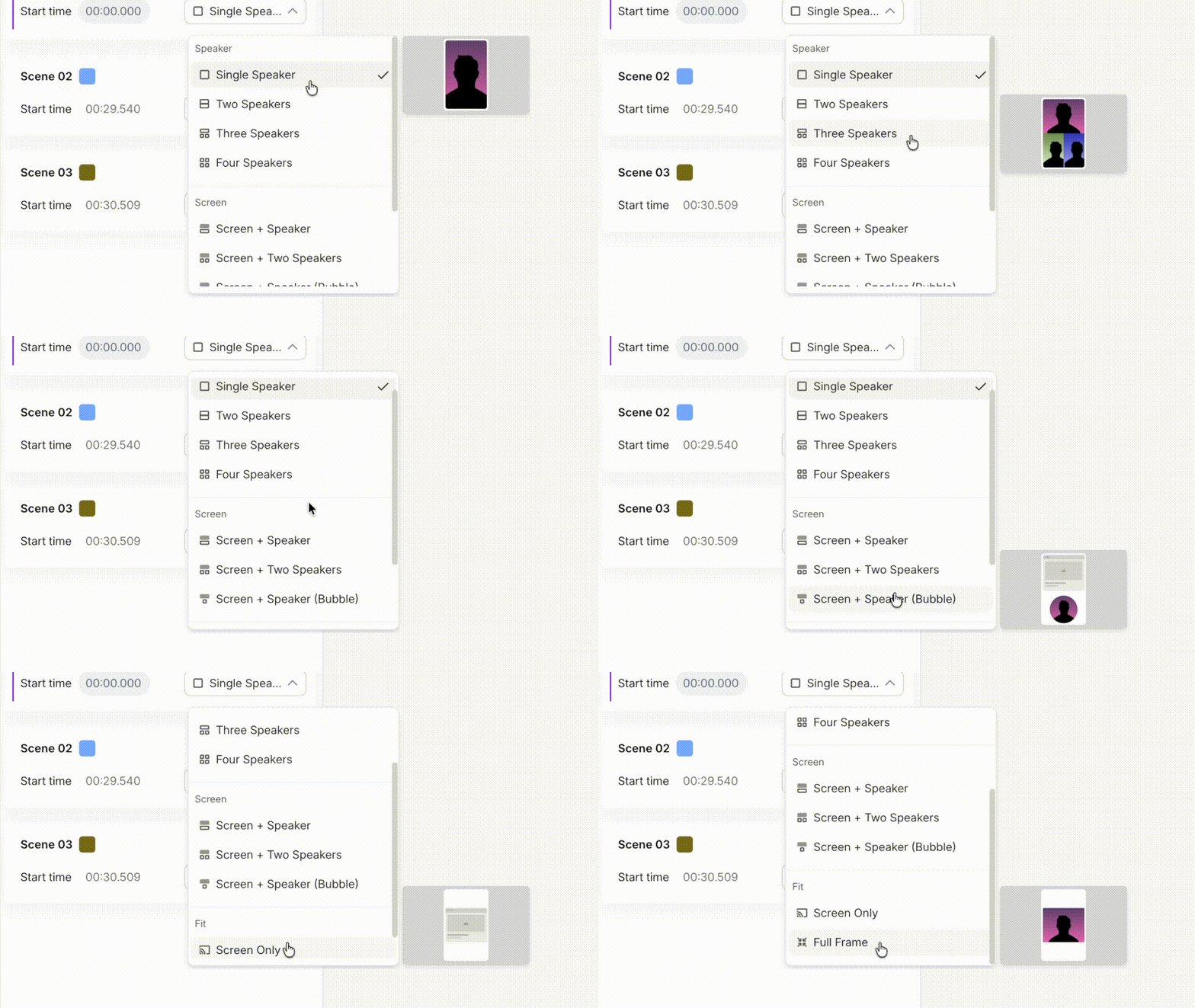
CutMagic now supports 9 layout types, organized into three categories: Speaker layouts:- Single Speaker — Full-frame view focused on a single speaker.
- Two Speakers — Split view for two speakers.
- Three Speakers — Grid view for three speakers.
- Four Speakers — Grid view for four speakers.
- Screen + Speaker — Screen content on top with the speaker below.
- Screen + Two Speakers — Screen content with two speakers visible.
- Screen + Speaker (Bubble) — Screen content with the speaker shown as a bubble below.
- Screen Only — Full-frame screen content with no speaker visible.
- Fit — Scales the full original frame to fit within the portrait (9:16) canvas.
Note: CutMagic is currently available for 9:16 (Portrait) format only. More formats are coming soon.
Choosing and Previewing Layouts
You can change the layout for any scene at any time.
- Open the CutMagic tab in the editor sidebar.
- Go to the scene you want to adjust.
- Click the layout dropdown next to the scene (for example, “Screen + Speaker”).
- Browse the available layout options. The canvas updates with a live preview as you hover or select a layout, so you can see exactly how the scene will look before committing.
- When you select a layout, Smart Adaptation automatically adjusts and repositions the clip framing for the best possible visual presentation. This ensures subjects are properly aligned and optimized within the selected layout without requiring manual adjustments.
- Select the layout that works best for your content.
Crop and Reframe
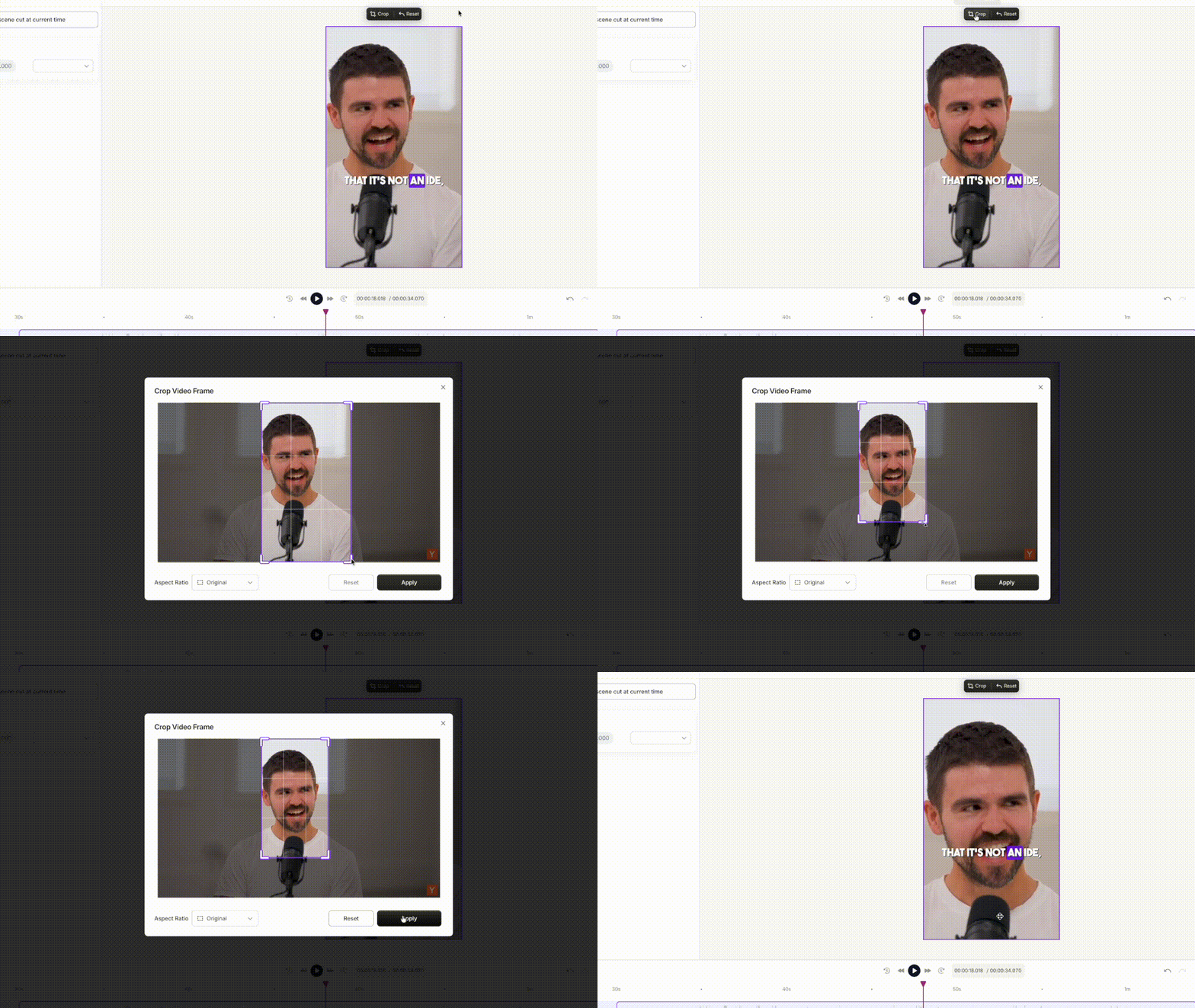
While working with layouts, you can crop or reframe any element on the canvas to fine-tune how it appears. To enter Crop Mode:- Click on the element you want to adjust on the canvas (e.g., the speaker video or the screen section).
- Click the Crop button that appears on the element.
- The Crop Video Frame dialog will open.
- Original — Crops while maintaining the original aspect ratio of the element.
- Freeform — Lets you resize and crop without any aspect ratio constraints.
- Adjust the crop area by dragging the edges or corners of the frame.
- Click Apply to save your changes, or Reset to discard them.
Auto-Positioned Subtitles
Each layout now includes auto-positioned subtitles. CutMagic places subtitles in a location that avoids covering faces or key content areas on the screen. This means:- Subtitles stay readable and don’t block important visuals.
- You don’t need to manually move subtitles every time you change a layout.
- Different layouts automatically get different subtitle positions based on where the content is.
Resetting Changes
If you’ve moved or adjusted elements on the canvas (like repositioning the speaker video), you can reset them back to their original position.- Click on the element you adjusted on the canvas.
- Click the Reset button that appears alongside the Crop button.
- The element returns to its original position as set by CutMagic.