

✅ Step 1: Upload or Select a Video
To get started, either:-
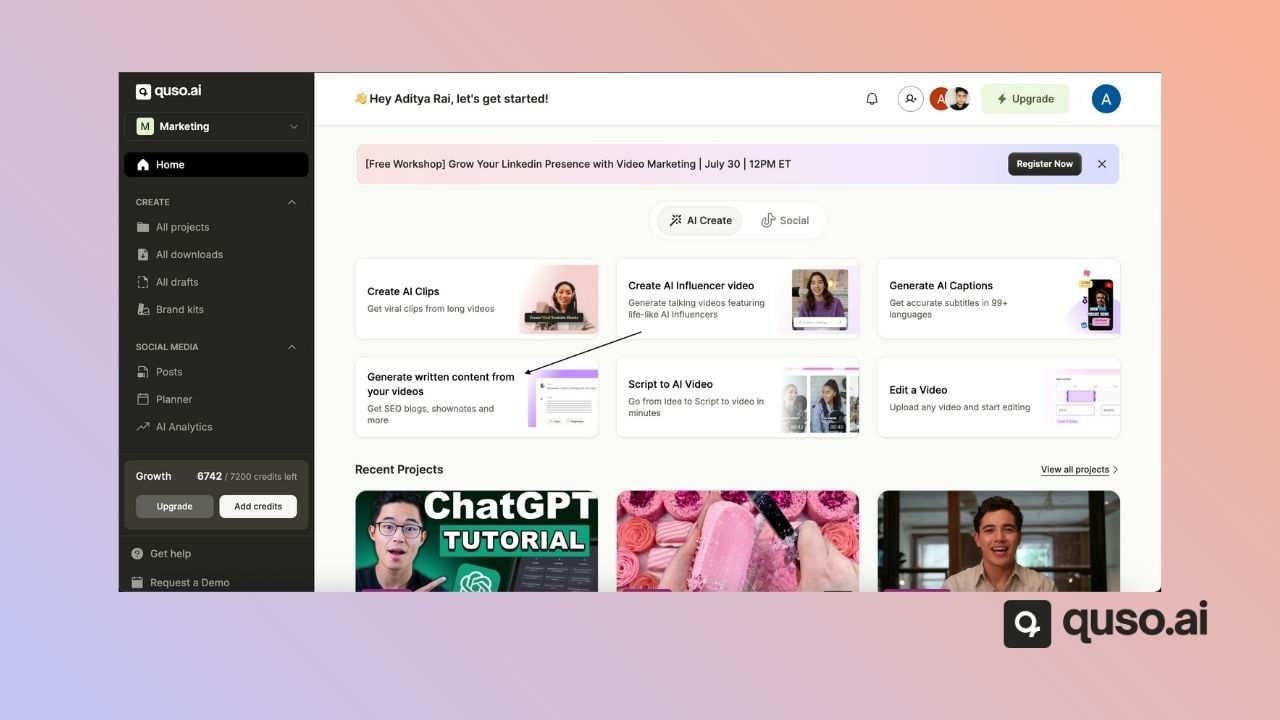
Click AI Writer (“Get SEO blogs, Shownotes and more”) on the home page.
-
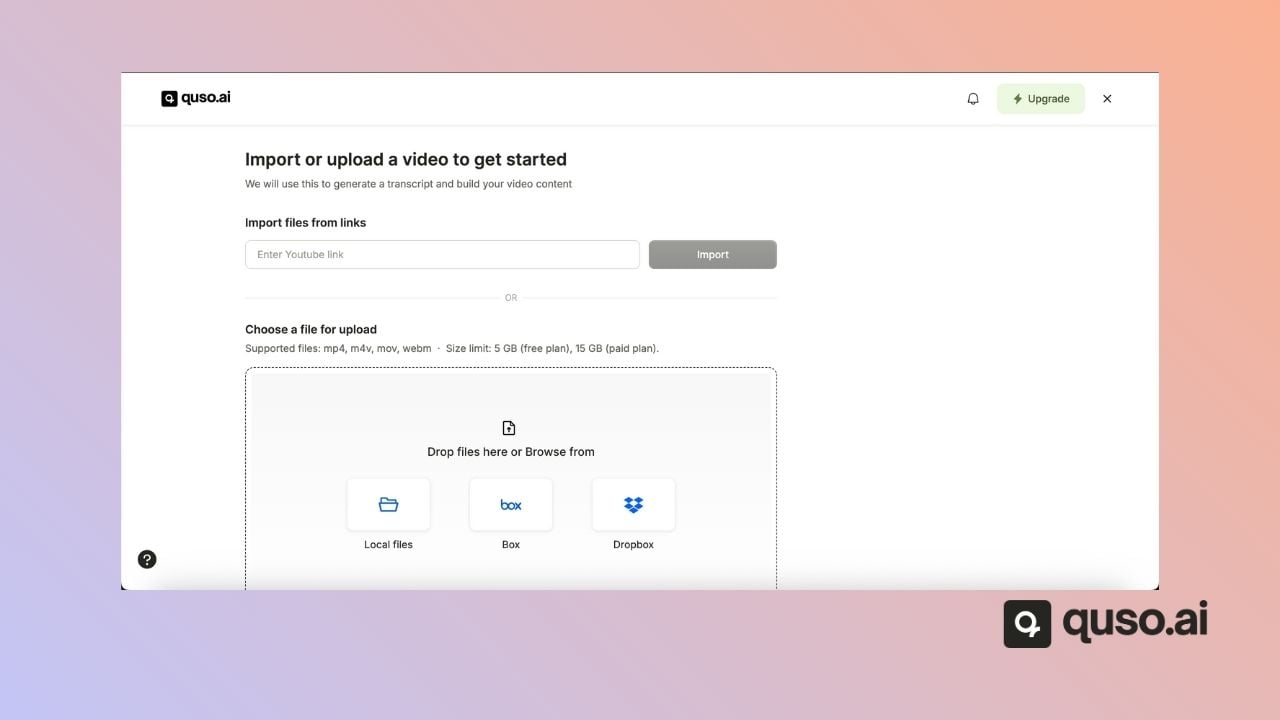
Upload the new video
🧠 Step 2: View the Transcript
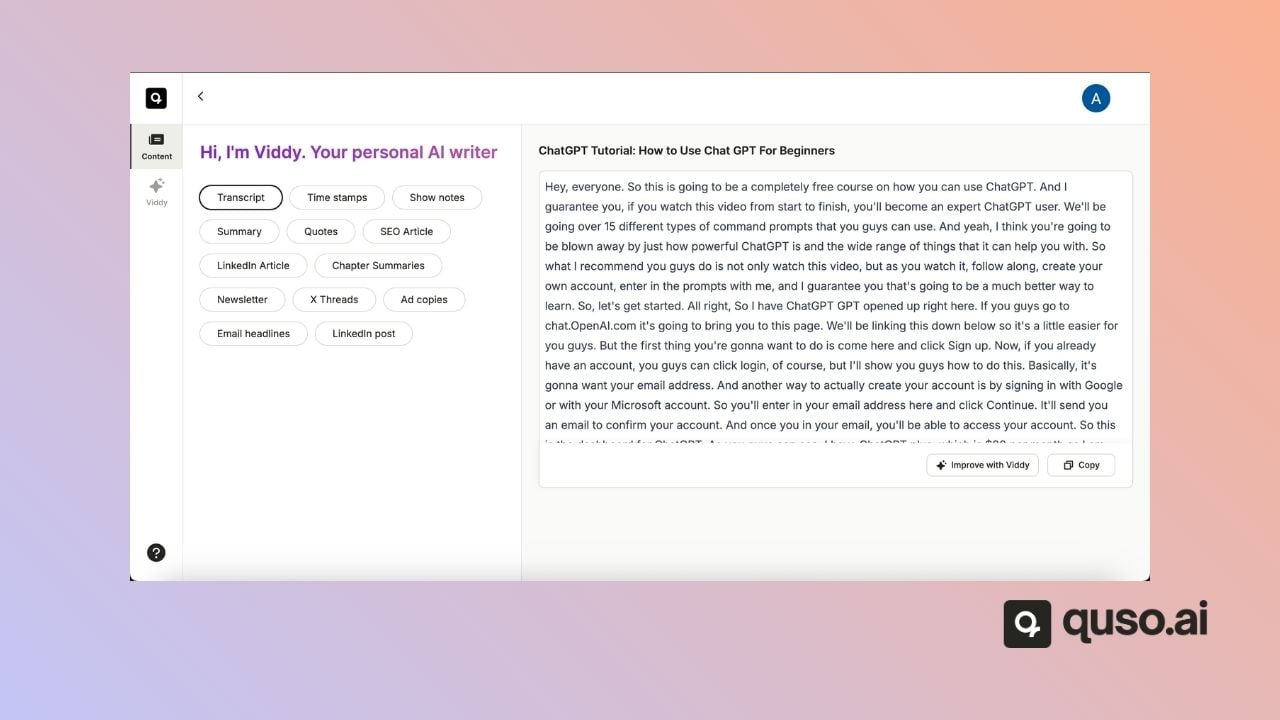
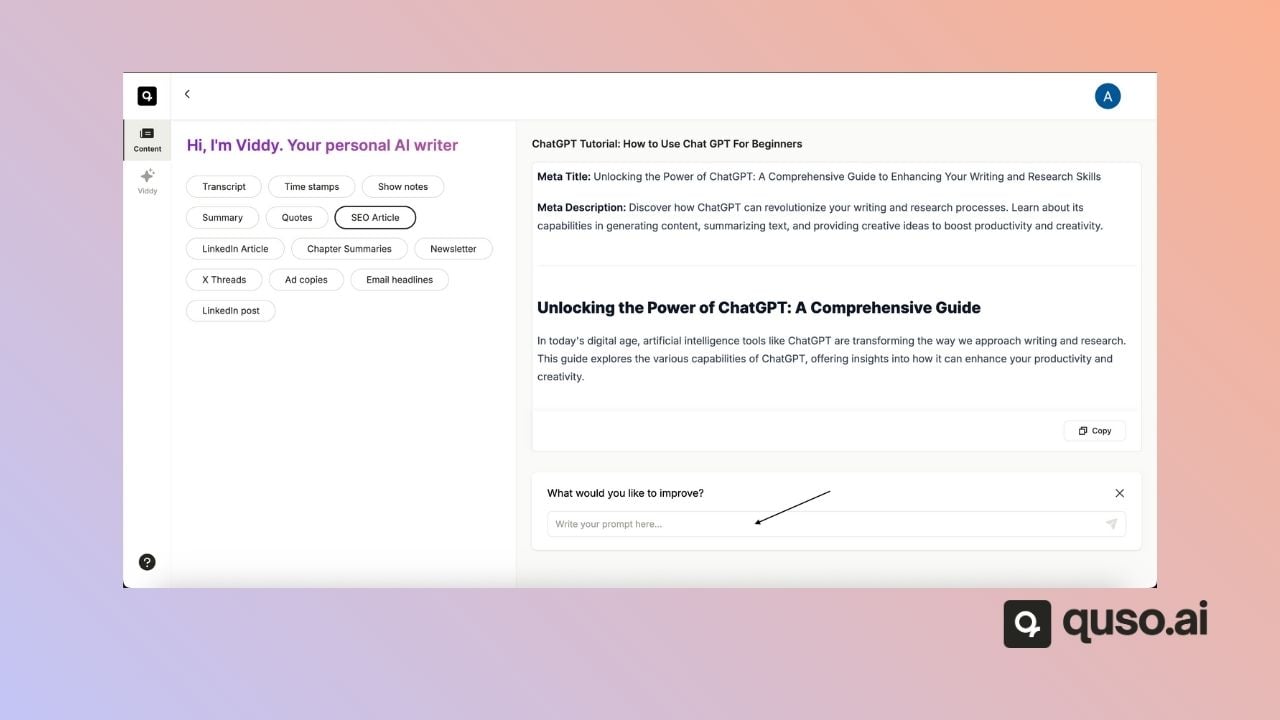
quso.ai automatically writes content from your video. Pick an output from the Content list on the left:- Transcript and Time stamps
- Show notes, Summary and Quotes
- SEO Article and LinkedIn Article
- Chapter Summaries and Newsletter
- X Threads, LinkedIn post, Ad copies and Email headlines
✨ Step 3: Click “Improve with Viddy 2.0”
To supercharge your content, click the “Improve with Viddy 2.0” button. This brings quso.ai’s AI assistant, Viddy, into the workflow — allowing you to generate and refine content directly by entering the prompts to improve on the existing article.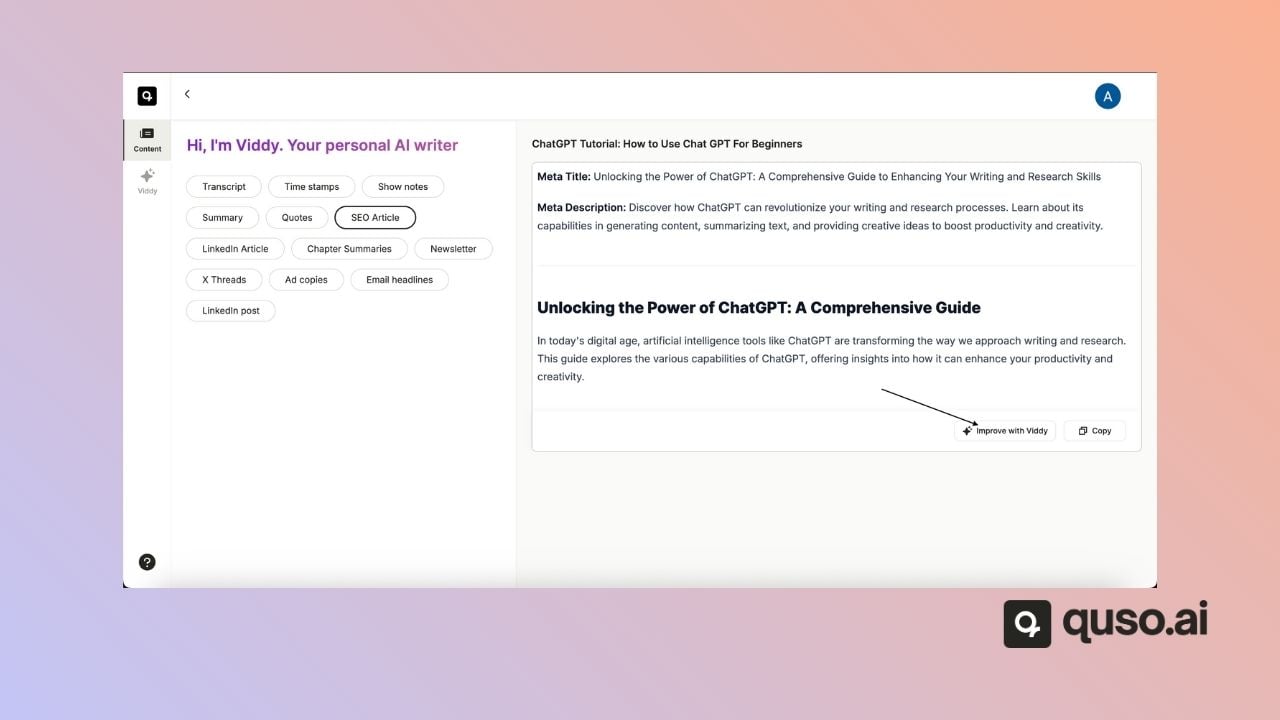
🛠 Step 4: Edit, Refine, or Revert
Once you’ve generated content:- You can edit or tweak the output directly
- Click “Improve with Viddy” again to get a revised version
- Use “Revert Changes” if you’d like to go back to your original transcript
💬 Step 5: Enter a Prompt for Viddy
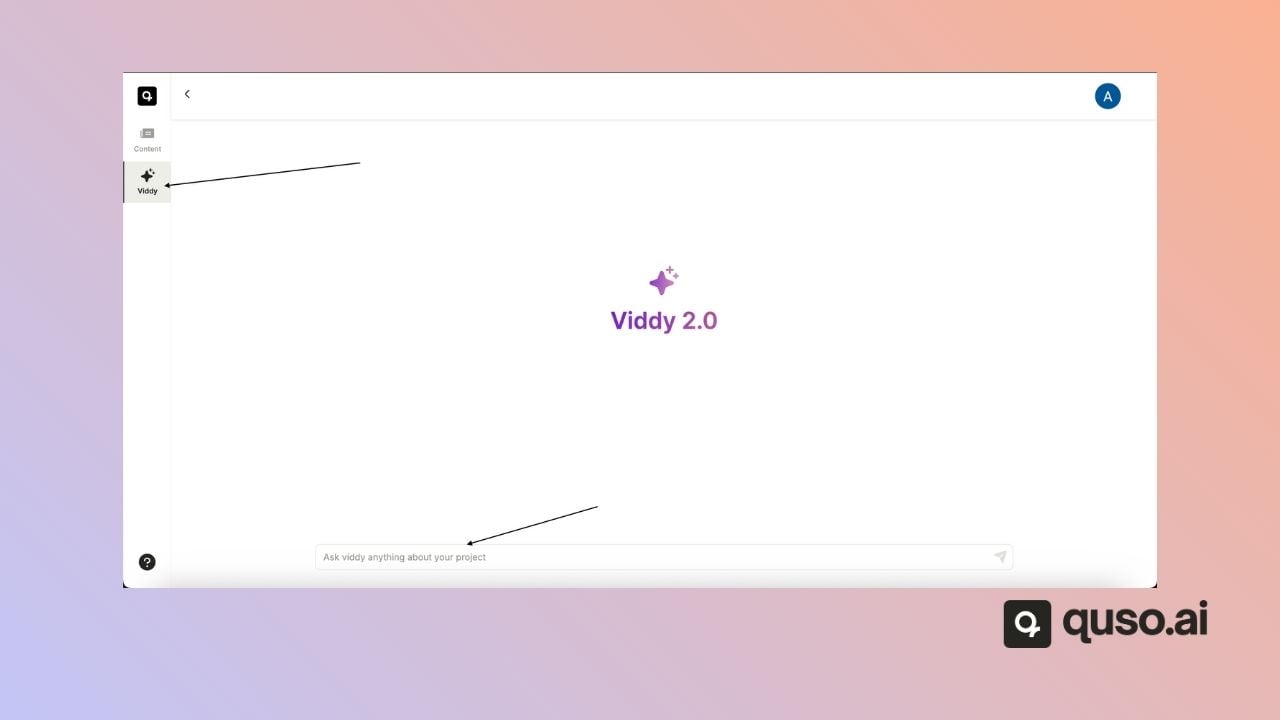
Open Viddy in the left menu to type your own prompts. Viddy is on the Essential and Growth plans. Use a natural-language prompt to ask the AI for specific content. Examples:- “Write a LinkedIn post from this video.”
- “Summarize the key takeaways in 3 bullet points.”
- “Turn this into a blog intro.”
- “Generate a YouTube description.”
📥 Step 6: Copy or Schedule the Output
When you’re happy with the result, you can:- Copy the text to use on other platforms
- Or paste it into a post when you publish your clips
🎯 Use Cases for AI Writer
- Social captions for TikTok, Instagram, LinkedIn, or YouTube
- Blog posts based on webinar recordings or podcast episodes
- Email newsletters or product announcements
- Video descriptions or titles
- Summaries and show notes