

Edit with AI is in the new quso.ai editor and is rolling out gradually. If you don’t see the Ask AI to edit this clip… bar under your video yet, it hasn’t reached your account.
Find the AI bar
Open any clip in the editor. The Ask AI to edit this clip… bar sits just under the video. Click it, or press ⌘K (Ctrl+K on Windows) to jump straight to it.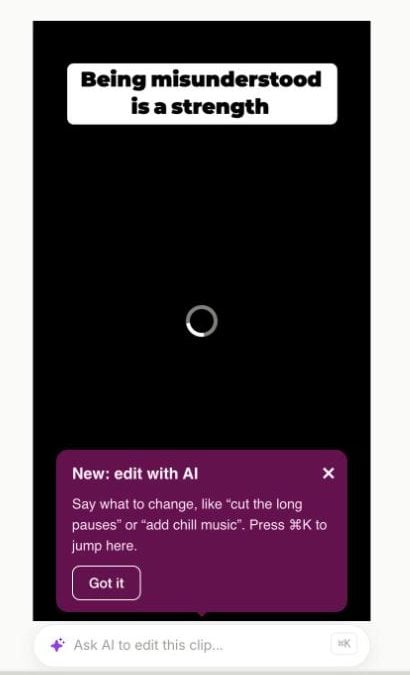
Ask for a change
Step 1: Say what you want
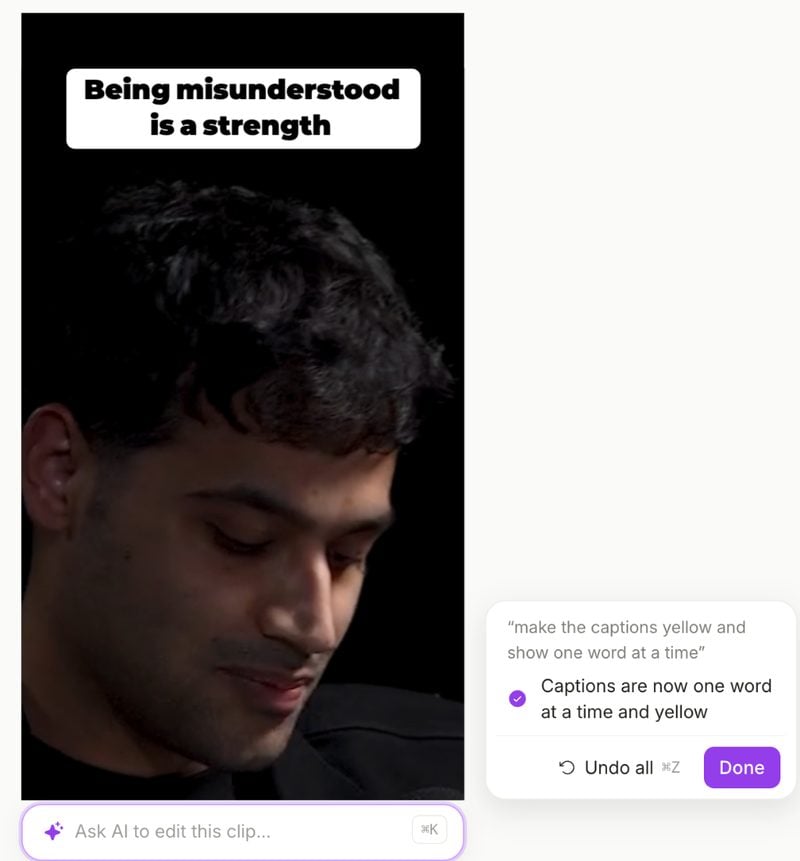
- Type your request in your own words. You can ask for several things at once: “make the captions yellow and show one word at a time”.
Step 2: Send it
- Press Enter or click the arrow. It takes a few seconds. Press Esc to stop.
Step 3: Check the result
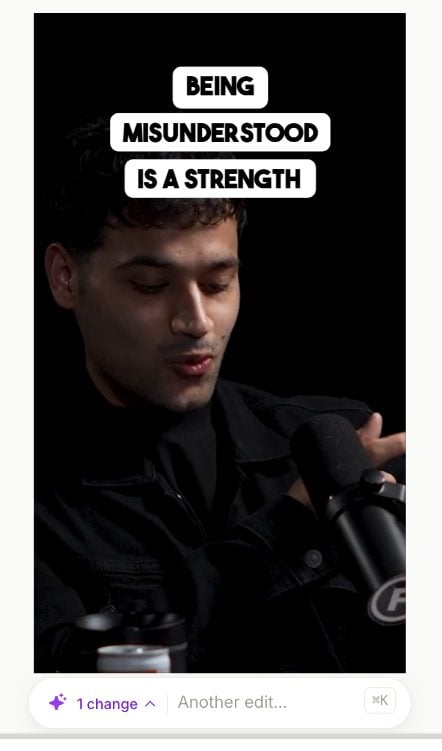
- A card next to the video lists every change it made. Play the clip to see them.
What you can ask for
When it can’t do something
If you ask for something it can’t do yet, the card says so and why, and links to the place in the editor where you can do it yourself. Everything else in your request is still done.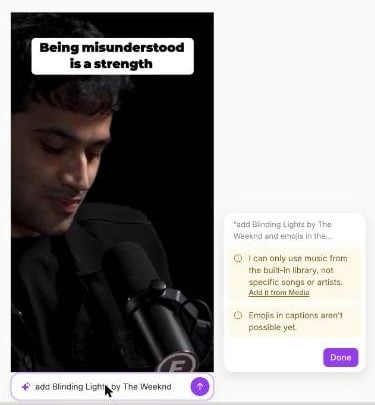
- A specific song or artist. Music comes from the quso.ai library only. To use your own track, add it from Media.
- Emojis in captions, b-roll, transitions, and zooming in at one moment only.
Undo a change
Every request is one step in the editor’s history:- Click Undo all on the result card, or
- Press ⌘Z (Ctrl+Z), or click Undo in the editor, or
- Type “undo that” in the bar.
FAQ
Does it change my original video?
Does it change my original video?
No. It makes the same edits you could make by hand in the editor, on this clip only. Your source video is never changed, and every change can be undone.
Why did it say a part isn't in my clip?
Why did it say a part isn't in my clip?
It only cuts words it can clearly match to what you described. If that part of the conversation is outside this clip, it tells you instead of cutting something else.
Why didn't my export come out faster?
Why didn't my export come out faster?
Faster export speeds are part of paid plans. On the free plan, the AI tells you instead of changing the speed. The preview always plays at normal speed; the speed applies to the downloaded video.
Can I edit what it added?
Can I edit what it added?
Yes. Added text, music and caption changes are normal editor layers and settings. Change them with the usual tools, for example Change text style and effects or Add music to your clips.